Kicking the Dead 3D Workhorse Back to Life: A Halloween Resurrection of My Ender 3 V2
by zero
For a couple of years my Creality Ender 3 V2 sat in the corner like an old workhorse that had quietly died. It still worked, technically. But printing meant walking an SD card across the room and hoping for the best, so mostly it didn’t print at all.
In the last week of October I decided to raise it from the dead, and not just back to how it was. I wanted it in the modern day: run from a browser, watched by a camera, on better firmware, with its own touchscreen and a fresh new hotend cover. Every test print along the way was a Halloween ghost, so by 31 October a whole ghost family was haunting my desk.
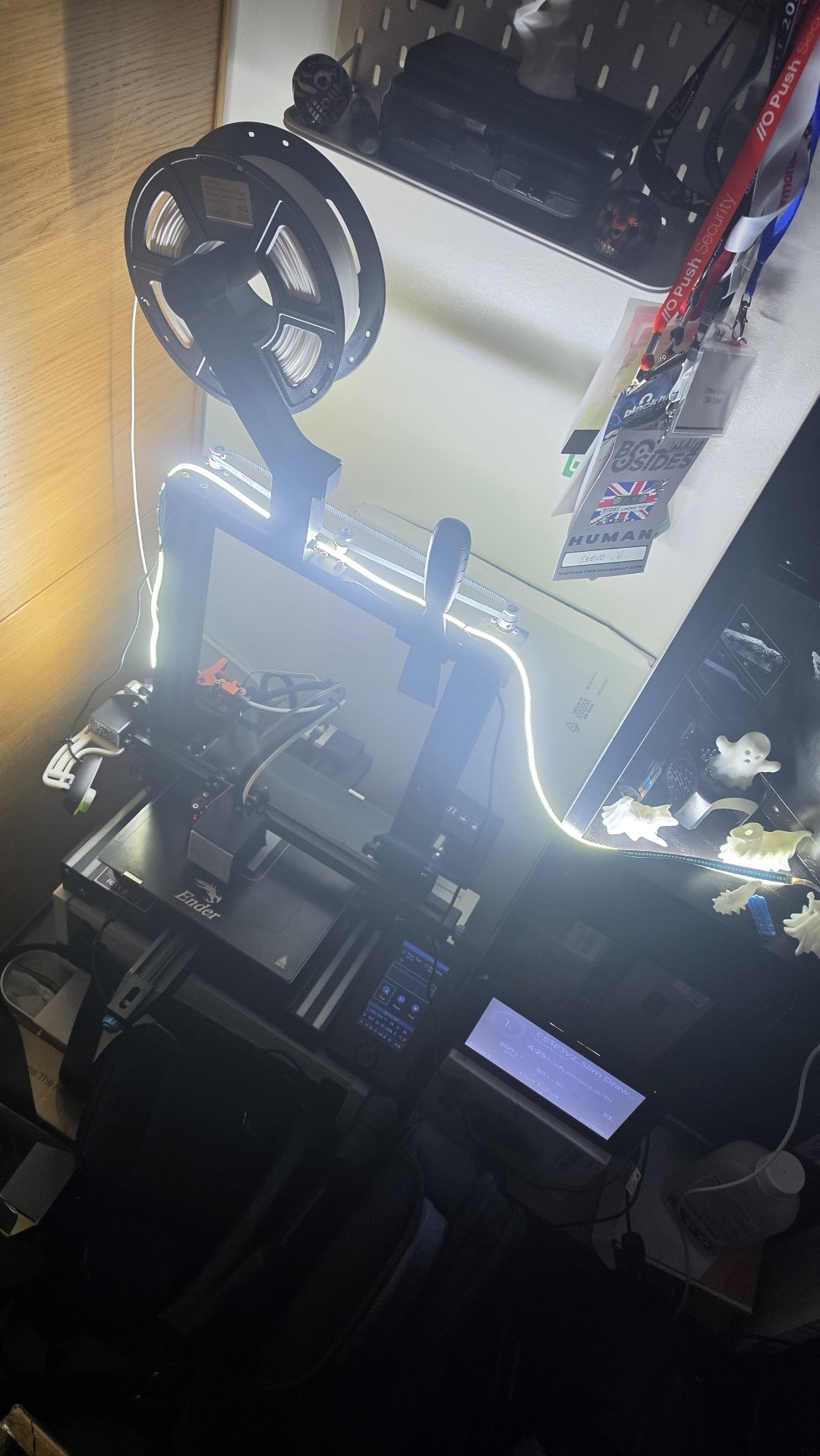
Back from the dead: the Ender 3 V2 at night under its new LED strip, with OctoDash glowing beside it and the ghost family haunting the shelf.
A ghost brought back to life: my photo of the first printed ghost, animated into a 10-second clip on my local AI rig. It wakes up, lifts off the desk and drifts away over the printer. More on that at the end of the post.
Meet the patient: the Creality Ender 3 V2
If you’ve never owned a 3D printer, here’s what we’re bringing back. The Ender 3 V2 is a budget FDM printer from Creality, released in 2020. FDM (fused deposition modelling) printers melt plastic filament from a spool and lay it down one thin layer at a time, building a part up from the bed like a very slow, very precise hot-glue gun. The V2 prints anything that fits in a 220 × 220 × 250 mm box.
For a few years it was one of the most popular hobby printers around, because it was cheap, reliable and easy to upgrade. Compared with the original Ender 3 it added:
- a quieter “silent” mainboard
- a colour screen with a control knob
- a glass print bed
- belt tensioners on the X and Y axes
- a tidier, integrated frame with the power supply and electronics tucked inside
That huge user base is why so many upgrades, printable parts and guides exist for it, and why it’s such a good candidate for a resurrection.
Should you buy one today?
Creality still lists it: as of 1 November 2026 its US store shows $179, down from $279, although it was marked sold out when I checked. Even at that price, I wouldn’t recommend buying one new. It’s a 2020 design: a Bowden extruder, manual bed levelling out of the box, no network connection, and slow by today’s standards. For slightly more money, newer printers (Creality’s own Ender-3 V3 line among them) come with automatic bed levelling, direct-drive extruders and far faster printing, and many add Wi-Fi.
That isn’t what this post is about, though. It’s about the printer you already own. Plenty of these machines are gathering dust in spare rooms and sheds, and with a Raspberry Pi, free open-source software and a few printed parts, an old printer can pick up most of what new ones ship with: remote control from a browser, a camera, timelapses, a touchscreen and better firmware.
Everything here uses free, open-source software and roughly £100 of parts, most of it the touchscreen. New to 3D printing? Each part opens with a plain-English “In short”, and there’s a glossary just below. Already own a printer? The exact commands, settings and every problem I hit are here, so you can follow along step by step.
What I started with: an Ender 3 V2 on stock Creality firmware, already fitted with a dual-gear metal extruder and a CR Touch/BLTouch probe.
The resurrection at a glance
Six stages took the printer from SD-card relic to a fully connected machine:
| Stage | Upgrade | Rough cost | What it brought back |
|---|---|---|---|
| 1. A brain | OctoPrint on a Raspberry Pi 3B | ~£20 (Pi already owned) | Print straight from the slicer; control everything from a browser |
| 2. Eyes | Logitech C270 webcam with a focus hack | £16.99 | Watch prints from anywhere; sharp, stabilised timelapses |
| 3. A new soul | MRiscoC Professional Firmware | Free | Far more info on the stock screen, a 5×5 auto bed mesh, steadier temperatures |
| 4. A face | Official 7” touchscreen running OctoDash | £57.60 | Start, pause and preheat at the printer without a phone |
| 5. A new skin | Clean Shroud 2.0 reusing both stock fans, with a white Creality-logo fan grill | Filament only | A cleaner, modern-looking hotend |
| 6. The ghost family | Halloween test prints | Filament | Proof that it all works together |
New here? The words you’ll see
| Term | What it means |
|---|---|
| Slicer (Cura) | Program on your computer that turns a 3D model into printer instructions |
| G-code | The text commands a printer follows. G28, for example, means “home all axes” |
| Firmware | The software running on the printer’s own control board and screen |
| OctoPrint | Free software that lets you run the printer from a web browser |
| Raspberry Pi | A credit-card-sized computer; here it runs OctoPrint |
| Hotend and nozzle | The hot part that melts the plastic and pushes it out |
| Bowden tube | The white tube carrying filament from the extruder motor to the hotend |
| Probe and bed mesh | The CR Touch probe measures the bed’s tiny bumps so the printer can compensate |
| Z-offset | The gap between nozzle and bed on the first layer: the single most important setting |
Part 1: Giving it a brain with OctoPrint
In short: a small Raspberry Pi computer plugs into the printer’s USB port and runs OctoPrint. The printer becomes a web page: you upload, start, watch and stop prints from any browser, and send jobs straight from your slicer.
What OctoPrint actually does
OctoPrint is a free, open-source web interface that sits between your network and your printer’s USB port. Instead of walking an SD card to the printer, you control everything from a browser on any device.
Out of the box it gives you:
- Upload and print G-code from any browser or straight from your slicer, with folders to keep files organised.
- Live temperature graphs for nozzle and bed, with presets for PLA, PETG and so on.
- A Control tab to jog the axes, home, extrude, retract and switch fans on and off.
- A G-code Terminal for calibration and diagnostics, which I used for E-steps and probe tests.
- A G-code Viewer that shows each layer’s toolpath and follows the print as it runs.
- Webcam streaming and built-in timelapses.
- G-code scripts that run automatically before or after a print, or when you pause or cancel, for example to park the head out of the way.
- Users and permission groups, so you can give someone (or an AI agent) view-only access.
- An Event Manager that runs commands when things happen, such as a print finishing.
- A REST API with per-app keys. This is how Cura sends jobs, and how the AI integration in a later part will work.
- Housekeeping: one-click backup and restore, safe mode for troubleshooting plugins, built-in updates, and a warning icon when the Pi is under-powered.
On top of that sits a large plugin ecosystem, covered further down.
Parts list for the whole build
The core upgrade costs under £50 if you already have a Pi 3B. UK prices as of October 2026.
| Part | What I used | Approx. cost | Notes |
|---|---|---|---|
| Raspberry Pi | Pi 3 Model B v1.2 | Already owned | On OctoPrint’s recommended hardware list |
| Pi power supply | Official Raspberry Pi 12.5 W micro-USB, UK plug | £7.70 | 5.1 V / 2.5 A. Don’t skip this, see Lessons learned |
| microSD card | 16 GB+ A1 card | ~£8 | |
| USB cable | USB-A to Micro-USB data cable | ~£5 | The V2 uses Micro-USB, not Mini-USB like the original Ender 3 |
| Webcam | Logitech C270 HD Webcam, 720p/30fps, black | £16.99 | Bought from the Logitech store on Amazon UK. Plug and play on OctoPi |
| Touchscreen (Part 4) | Official Raspberry Pi 7” Touch Display | £57.60 | 800×480, DSI. Give it its own power supply if you can |
| Printed parts | C270 focus ring and face plate, camera mount, Clean Shroud 2.0 and fan grill | Filament | Printed on the Ender itself |
Software is all free: Raspberry Pi Imager, OctoPi, OctoPrint, Cura and the plugins below.
Cheaper (and other) hosts
You don’t need a Pi 3B. OctoPrint officially recommends the Pi 3B, 3B+, 4B or Zero 2, warns against the original Zero and Zero W because their Wi-Fi struggles once a webcam streams, and also runs on Android phones, Orange Pis, Docker, Windows and any Linux box (OctoPrint download page).
| Host | Approx. cost (UK) | Good for | Watch out for |
|---|---|---|---|
| Raspberry Pi Zero 2 W | From £14.40 new | Cheapest officially recommended option; tiny enough to mount on the printer | 512 MB RAM and 2.4 GHz Wi-Fi only. Keep the webcam at 640×480 and plugins few |
| Raspberry Pi 3B / 3B+ | ~£20–30 used | What I’m using. Solid for one printer with a 720p webcam | Needs the official 2.5 A supply. Octolapse rendering is slow |
| Raspberry Pi 4 (2 GB) | ~£45–55 new | Headroom for webcam, Octolapse, OctoDash touchscreen and more plugins at once | Needs a 3 A USB-C supply and decent cooling |
| Old Android phone with Octo4a | Free if you have one | Zero-cost experiment, with a built-in camera | No root needed, but less mainstream and harder to troubleshoot |
| Orange Pi Zero 2 / Orange Pi 3 | ~£15–35 new | Cheap Pi alternative, with a ready-made image maintained by Obico | Smaller community, and support goes to Obico rather than OctoPrint |
| Used thin client (e.g. Dell Wyse 3040) | ~£20–40 used | x86, 2 GB RAM, wired Gigabit Ethernet, silent; run Debian plus octoprint_deploy or Docker | No GPIO pins for lights or relays, and fiddly BIOS setup on some units |
| Old laptop, mini PC or home server | Free if you have one | Plenty of power; octoprint_deploy can run several OctoPrint instances, one per printer |
Higher power draw if it runs 24/7. A sleeping laptop stops your print |
Used and new prices are rough and move around; check eBay and The Pi Hut before buying. Whatever you choose, the power supply and a short, good USB cable matter more than the CPU.
My pick if starting from scratch: a Pi 4 (2 GB) for one printer with a camera and touchscreen, or a Zero 2 W if you just want remote control on the cheap.
Step 1: Flash OctoPi
OctoPi is a ready-made Raspberry Pi image with OctoPrint and a webcam streamer pre-installed. I used OctoPi 1.1.0 with OctoPrint 1.11.8.
- Install Raspberry Pi Imager and set the device to Raspberry Pi 3.
- Under Choose OS, go to Other specific-purpose OS → 3D printing → OctoPi.
- Pick the image that matches your future camera:
- OctoPi (stable) for a USB webcam like the C270. This is what I used.
- OctoPi (new experimental camera stack) for a Pi Camera Module on a ribbon cable. Switching later means reflashing.
- In the customisation step, set a hostname, a user and strong password, Wi-Fi (country GB), locale and enable SSH.
- Write the card. If Windows offers to format it afterwards, click Cancel.
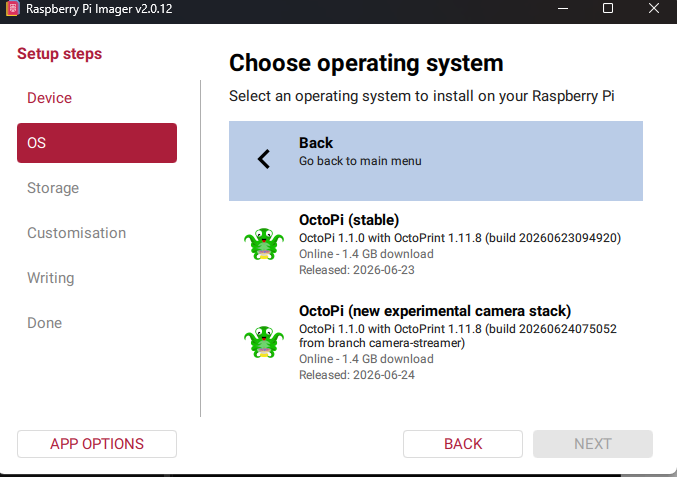
Raspberry Pi Imager’s OS list: OctoPi (stable) for a USB webcam, or the experimental camera stack for a Pi Camera Module. Both are OctoPi 1.1.0 with OctoPrint 1.11.8.
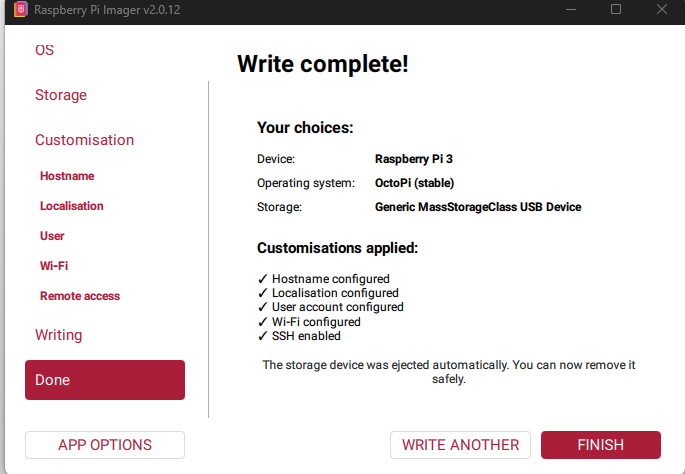
Write complete: OctoPi (stable) for a Raspberry Pi 3, with the hostname, localisation, user account, Wi-Fi and SSH all set in the customisation step.
Step 2: First boot and setup wizard
First boot takes 3–5 minutes. Then browse to http://<hostname>.local or the Pi’s IP address and run the wizard:
- Create an OctoPrint admin user and keep Access Control on.
- Enable the online connectivity check and the plugin blacklist.
- Create a printer profile with these values:
| Setting | Value |
|---|---|
| Form factor / origin | Rectangular, lower left |
| Heated bed / chamber | Yes / No |
| Build volume | 220 × 220 × 250 mm |
| Feedrates X/Y, Z, E | 6000, 200, 300 mm/min |
| Nozzle / extruders | 0.4 mm / 1 |
Those feedrates only affect the jog and extrude buttons in OctoPrint’s Control tab. Print speeds come from your slicer, so an extruder upgrade doesn’t change them.
Step 3: Connect the printer
Plug the Pi into the V2’s Micro-USB port. Stock Creality firmware shows up as /dev/ttyUSB0 at 115200 baud. Tick Auto-connect on server startup and connect.
I immediately got a “Firmware Broken” warning. Stock V2 firmware sends every temperature reading doubled, like TT::27.9327.93 //0.000.00 BB::21.8721.87, so OctoPrint’s temperature graph stays empty.
Fix: install the Creality 2x temperature reporting fix plugin from the Plugin Manager, then restart OctoPrint. Don’t install “Creality Temperature Fix” by mistake, which targets a different bug. The raw Terminal output still looks doubled afterwards, but the graph works. A firmware update fixes it properly, which is a later part of this series.
Update: the firmware upgrade in Step 9 fixed this at the source. Reports arrive as single lines, the plugin is removed and the connection runs at 250000 baud.
Step 4: Calibrate from the browser
OctoPrint’s Terminal tab sends G-code straight to the printer, which turns calibration into a copy-paste job.
Check E-steps
My V2 already had a dual-gear extruder, so I checked its E-steps value was right.
- Heat the nozzle with
M104 S200and wait for it to reach temperature. - Send
M503and find theM92line. Mine readM92 X80.00 Y80.00 Z400.00 E138.80. Stock single-gear is around 93; dual-gear extruders sit around 130–140. - Mark the filament 120 mm above the extruder inlet.
- Send
M83, thenG1 E100 F100, and wait about a minute. - Measure what’s left to the mark. 20 mm means exactly 100 mm went in.
- If not: new E = current E × 100 ÷ (120 − remaining). Save with
M92 E<value>thenM500. - Finish with
M82andM104 S0.
Mine came out at exactly 20 mm, so 138.80 was already correct.
Level the bed with Bed Visualizer
M503 also revealed a saved 3×3 probe mesh, but M420 S0 meant it wasn’t switched on. The Bed Visualizer plugin draws the mesh in 3D. Its numpy dependency can take over 30 minutes to install on a Pi, so be patient.
In Settings → Bed Visualizer → Collection, I used:
M140 S60 ; heat bed to printing temp
M190 S60 ; wait for bed temp
M155 S30 ; slow down temperature reports
@BEDLEVELVISUALIZER
G28 ; home
G29 T ; probe and print the mesh
M155 S3 ; restore temperature reports
M500 ; save new mesh to EEPROM
M140 S0 ; bed heater off
The M155 lines matter on stock firmware: the doubled temperature reports would otherwise corrupt the mesh data. One quarter-turn loosen on the two back bed knobs gave a big improvement:
| Highest | Lowest | Variance | |
|---|---|---|---|
| Before | +0.099 mm | −0.227 mm | 0.326 mm |
| After one adjustment | +0.052 mm | −0.146 mm | 0.198 mm |
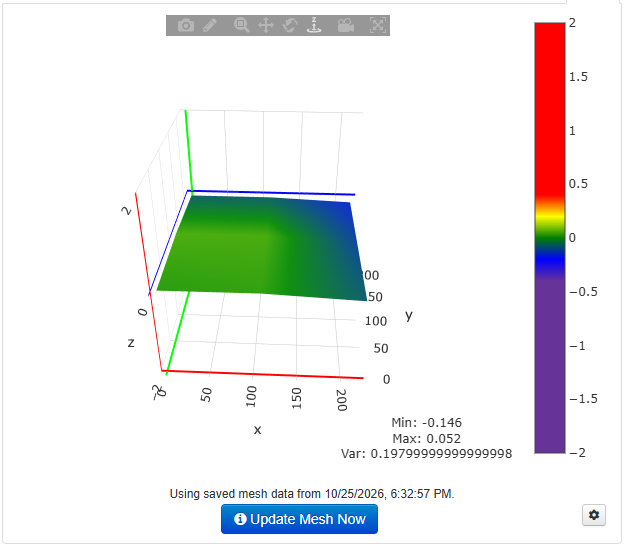
Bed Visualizer after one quarter-turn on the back knobs: min −0.146 mm, max +0.052 mm, a spread of 0.198 mm on the stock firmware’s 3×3 mesh.
Update: Step 9 replaces this with a 5×5 UBL mesh and a new Bed Visualizer script.
Step 5: Slice and send from Cura
- Add the Creality Ender-3 V2 printer in Cura and check Machine Settings: 220 × 220 × 250 mm, heated bed, Marlin flavour.
- In Start G-code, add
M420 S1 ; Enable saved bed meshon the line afterG28. Homing resets levelling, so order matters. - Install OctoPrint Connection from the Cura Marketplace, then use Connect OctoPrint, pick the discovered instance and click Request… to get an API key. Approve it in OctoPrint.
- Tick Connect to printer before sending print job. Leave Store G-code on the SD card unticked, because serial transfers are slow and Octolapse can’t work with SD prints.
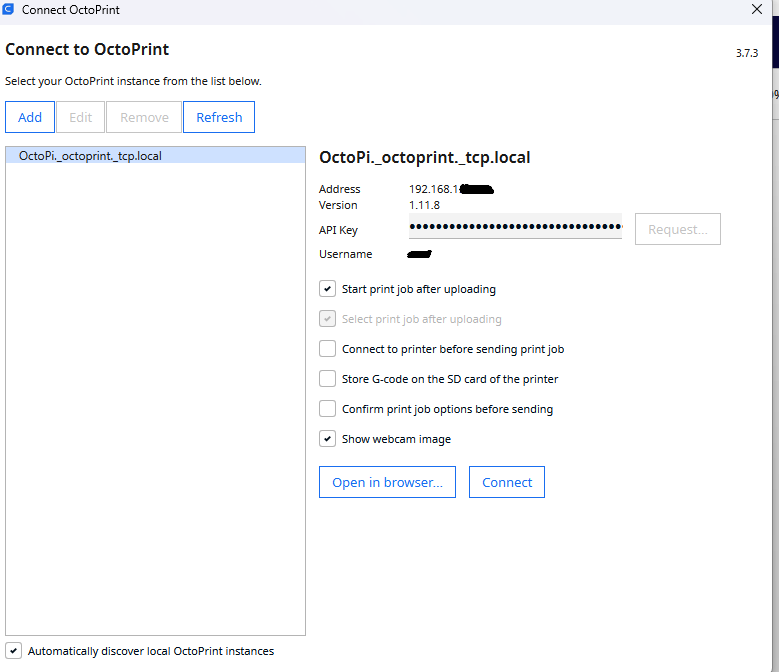
Cura’s OctoPrint Connection dialog finds the Pi automatically. I left “Connect to printer before sending print job” unticked because OctoPrint already auto-connects on startup. IP address and username redacted.
After slicing, the button becomes Print with OctoPrint.
Part 2: Giving it eyes with a £17 webcam
In short: a cheap Logitech C270 plugged into the Pi lets you watch every print live from your phone and records timelapse videos. Out of the box its focus is wrong for a printer, but a 15-minute hack and two small printed parts fix that.
Why give your printer eyes
The £16.99 webcam turned out to be the most valuable part of the whole upgrade. A printer without a camera is a heater you leave running blind; with one, you can see what it’s doing from anywhere.
- Check the first layer remotely. Most failures start in the first few minutes: poor adhesion, a nozzle too high or too low. Five minutes watching the stream from another room catches them.
- Catch failures before they waste hours. A part knocked loose turns into a nest of “spaghetti”. Spotting it early saves filament, time and sometimes a clogged hotend.
- Safer unattended printing. Glancing at the feed over Tailscale beats wondering what’s happening while you’re out.
- Troubleshooting evidence. Frames show exactly when and where a print went wrong: a layer shift, stringing, a support collapsing.
- Timelapses. Octolapse turns every print into a satisfying video, and fixed-position frames show defects clearly.
- The foundation for AI. A camera is what makes automatic failure detection possible. Octolapse’s stabilised frames, taken from the same position every layer, are ideal input for a vision model. That’s where this series is heading.
Good lighting matters as much as the camera. A neutral white LED strip above and in front of the bed fixes most colour casts and gives any detection model a consistent picture.
Step 6: Add the C270 webcam
On the stable OctoPi image, a USB webcam is detected automatically. Plug it into the Pi, then check over SSH:
lsusb | grep -i logitech        # expect 046d:0825 Webcam C270
systemctl status webcamd --no-pager
The default is 640×480 at 10 fps. The C270 does 720p natively and sends pre-compressed MJPEG, so the Pi 3B barely notices. On OctoPi 1.1.0 the config lives in /boot/firmware/octopi.txt:
sudo cp /boot/firmware/octopi.txt /boot/firmware/octopi.txt.bak
sudo sed -i 's/^#camera_usb_options="-r 640x480 -f 10"/camera_usb_options="-r 1280x720 -f 10"/' /boot/firmware/octopi.txt
sudo systemctl restart webcamd
Snapshot URL gotcha: OctoPrint’s snapshot URL is http://127.0.0.1:8080/?action=snapshot. That’s correct, because OctoPrint fetches it from the Pi itself. Your browser can’t open it, since 127.0.0.1 means your own PC and the streamer only listens locally. To view a still from your PC, use http://<pi-ip>/webcam/?action=snapshot instead.
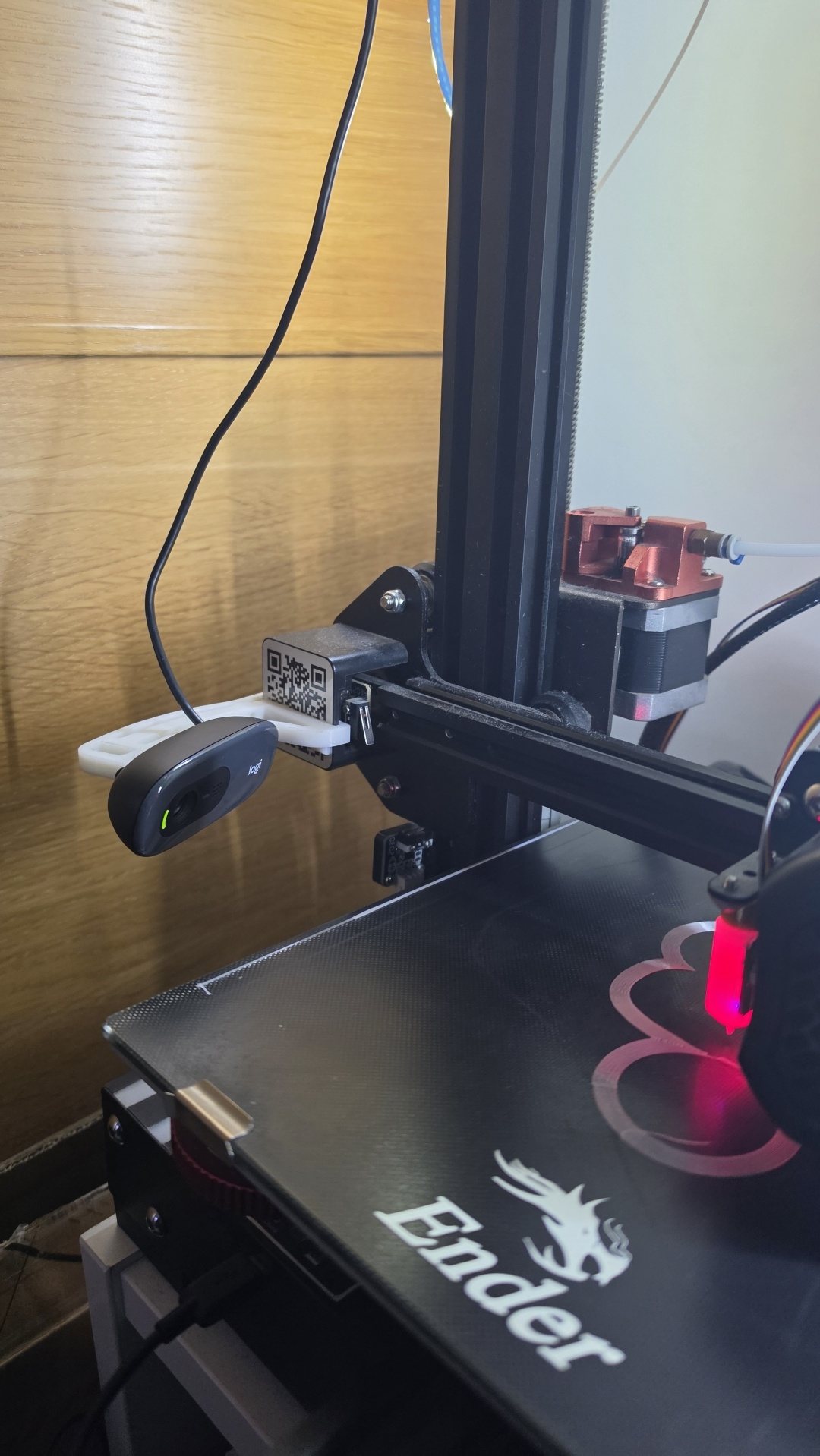
Before the focus hack: the stock C270 on a printed arm clipped to the frame, beside the copper dual-gear extruder. The stock hotend cover is still fitted, and a fresh skirt sits on the bed.
Step 7: Unlock the C270’s focus (the glue-blob hack)
The C270 is fixed-focus, set at the factory for a face about an arm’s length away. Pointed at a print 20–30 cm away, everything looks soft. There’s no software fix either: v4l2-ctl -d /dev/video0 --list-ctrls shows no focus control at all.
The problem: a timelapse of the very first ghost I printed, filmed through the stock C270. The camera is focused on nothing in particular, so the whole print stays a soft blur.
The good news is that the lens screws in and out like any other. Logitech just locks it in place with a blob of glue. Break the glue and you can focus it on your bed. It takes about 15 minutes, a small Phillips screwdriver and a craft knife.
The fix is a hardware mod, documented well by Eric Myers at SUNY New Paltz:
- Open the front. Unplug the webcam. Pry off the front frame, starting from the slot at the bottom; a plastic spudger or thin flat screwdriver works.
- Remove the face plate. Undo its three screws. Keep the small rubber microphone sleeve safe, because it’s easy to lose.
- Free the board. Undo the two screws holding the circuit board and lift it out with the lens attached.
- Break the glue blob. Find the dot of glue where the lens barrel meets its holder. Scrape it away with the craft knife, cutting away from your fingers, until the lens turns freely. Don’t press on the lens or touch the glass.
- Focus it live. Plug the camera back into the Pi and open OctoPrint’s webcam view. Put something with fine detail in the middle of the bed, such as a ruler or a print with text. Turn the lens a little at a time until it’s sharp, then reassemble.
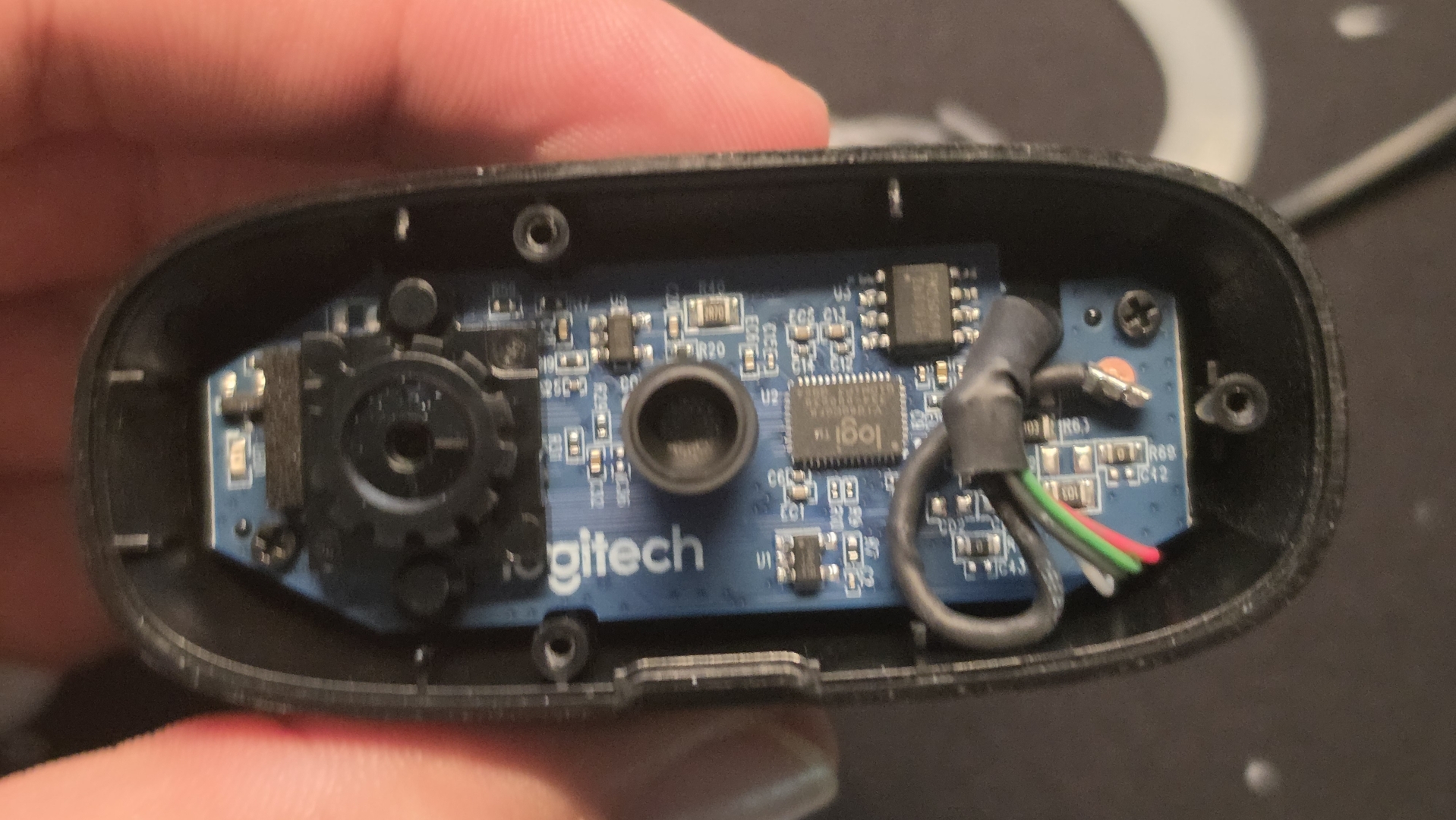
Inside the C270 with the front off: the lens sits in the toothed holder on the left, and the round part in the middle is the microphone.
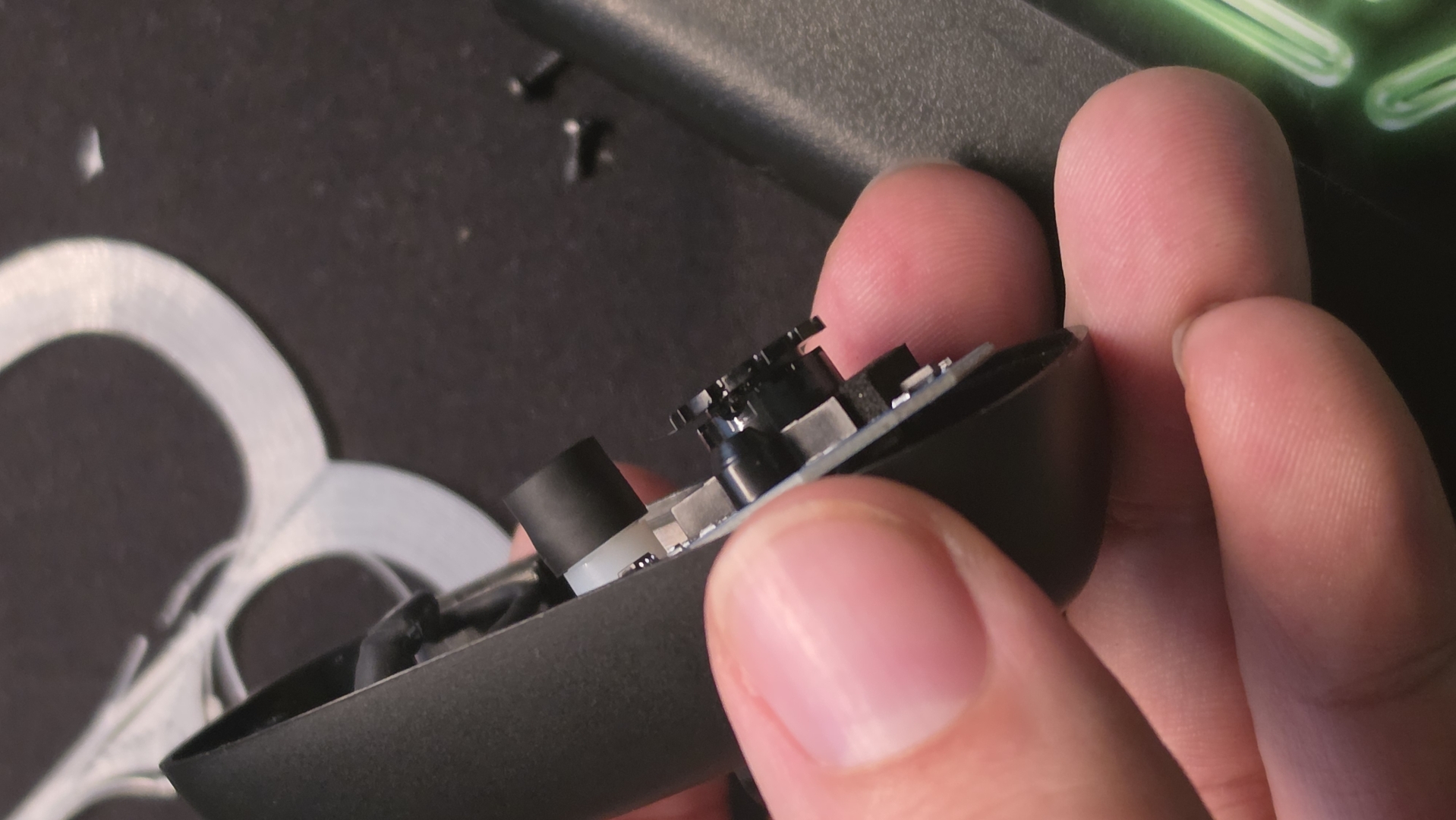
Glue blob gone: the lens barrel now turns freely in its holder.
I went one better and printed a focus ring and face plate on the Ender itself, so the lens can be adjusted from outside without opening the camera again. I printed the lens rings in 6 mm and 8 mm sizes, because newer C270s have a slightly smaller lens than older ones. Test-fit both and keep the one that grips without binding.
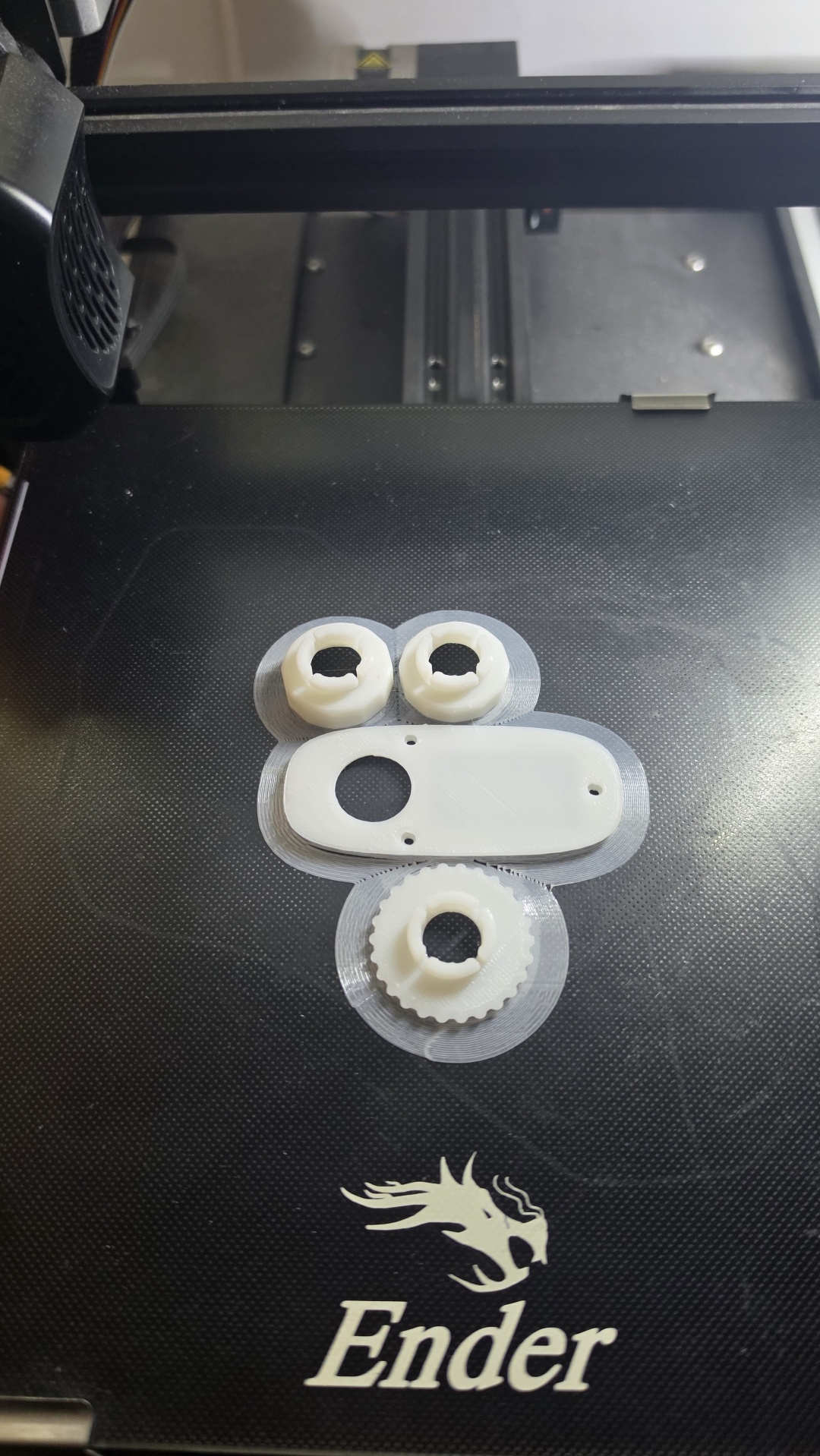
The mod parts fresh off the bed: two lens rings in different sizes, the replacement face plate and the knurled focus wheel.
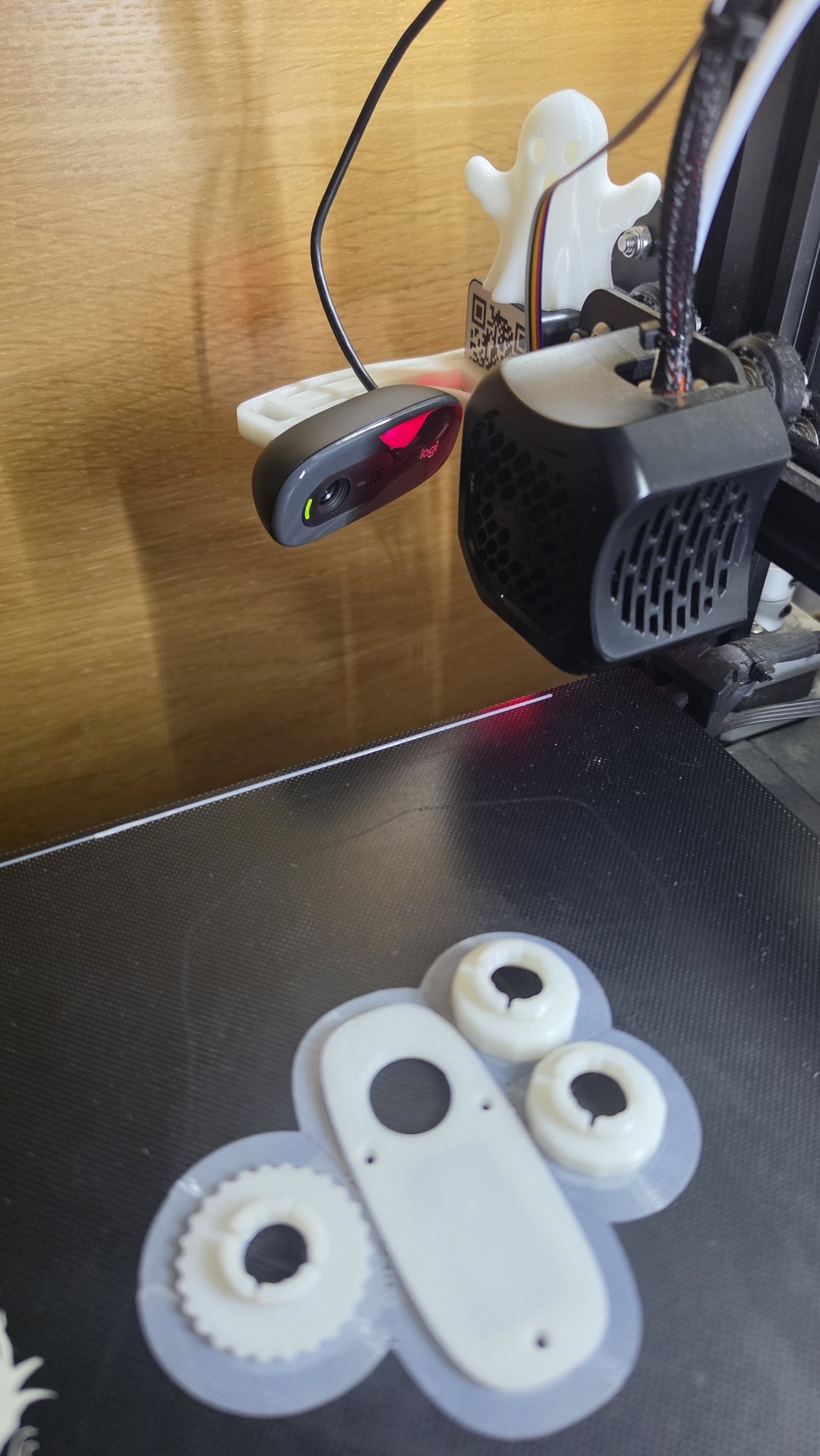
The same print from the camera’s side. A printed ghost keeps watch from the camera arm, next to the stock hotend cover.
The files I used:
- Logitech C270 focus ring and face plate on Thingiverse (thing 3036739)
- Logitech C270 Focus Ring on Printables, a remix sized for the smaller lens on newer C270s
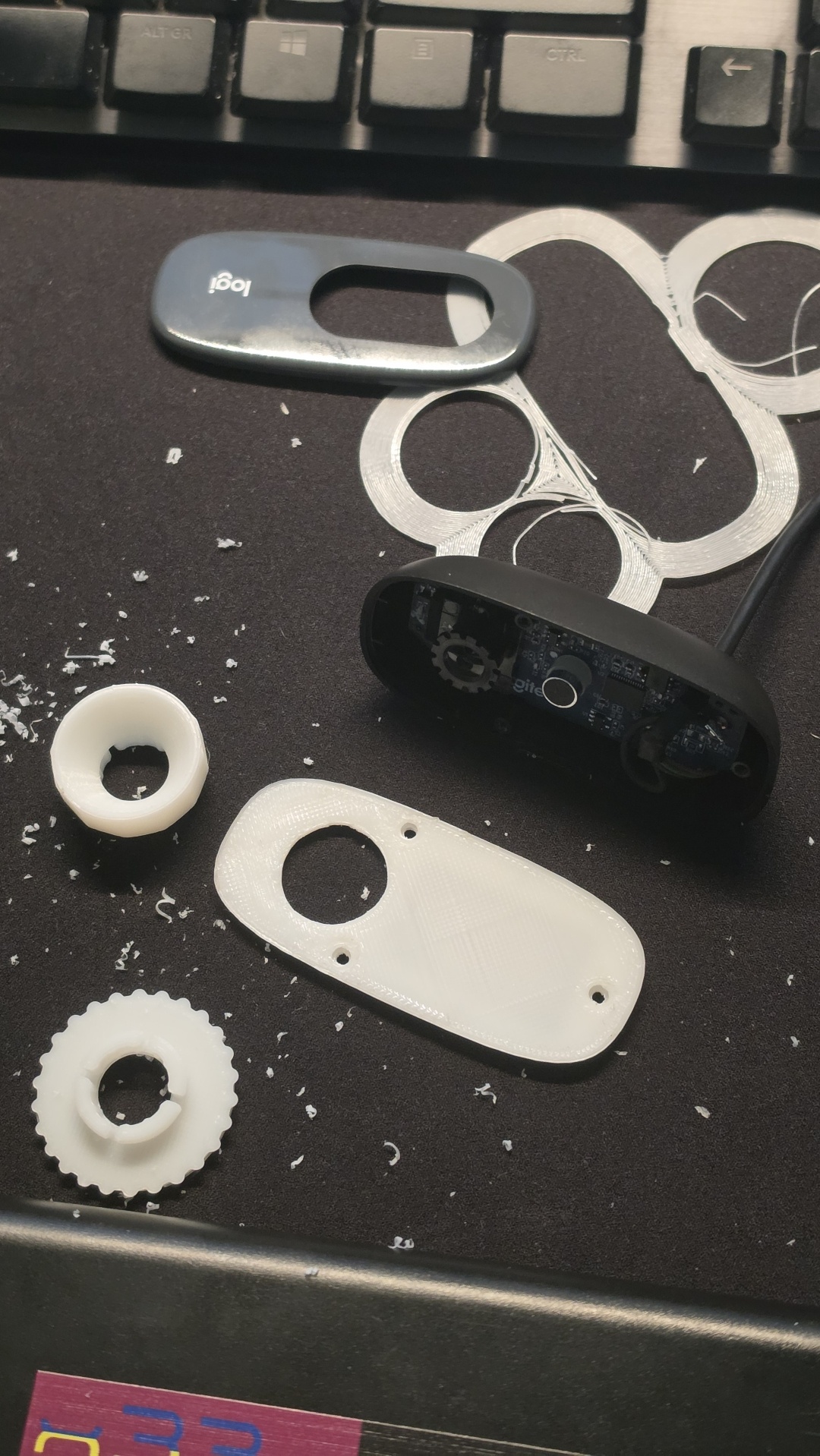
Swapping covers: the original Logitech face plate (top) comes off, and the printed face plate, lens ring and focus wheel go on.
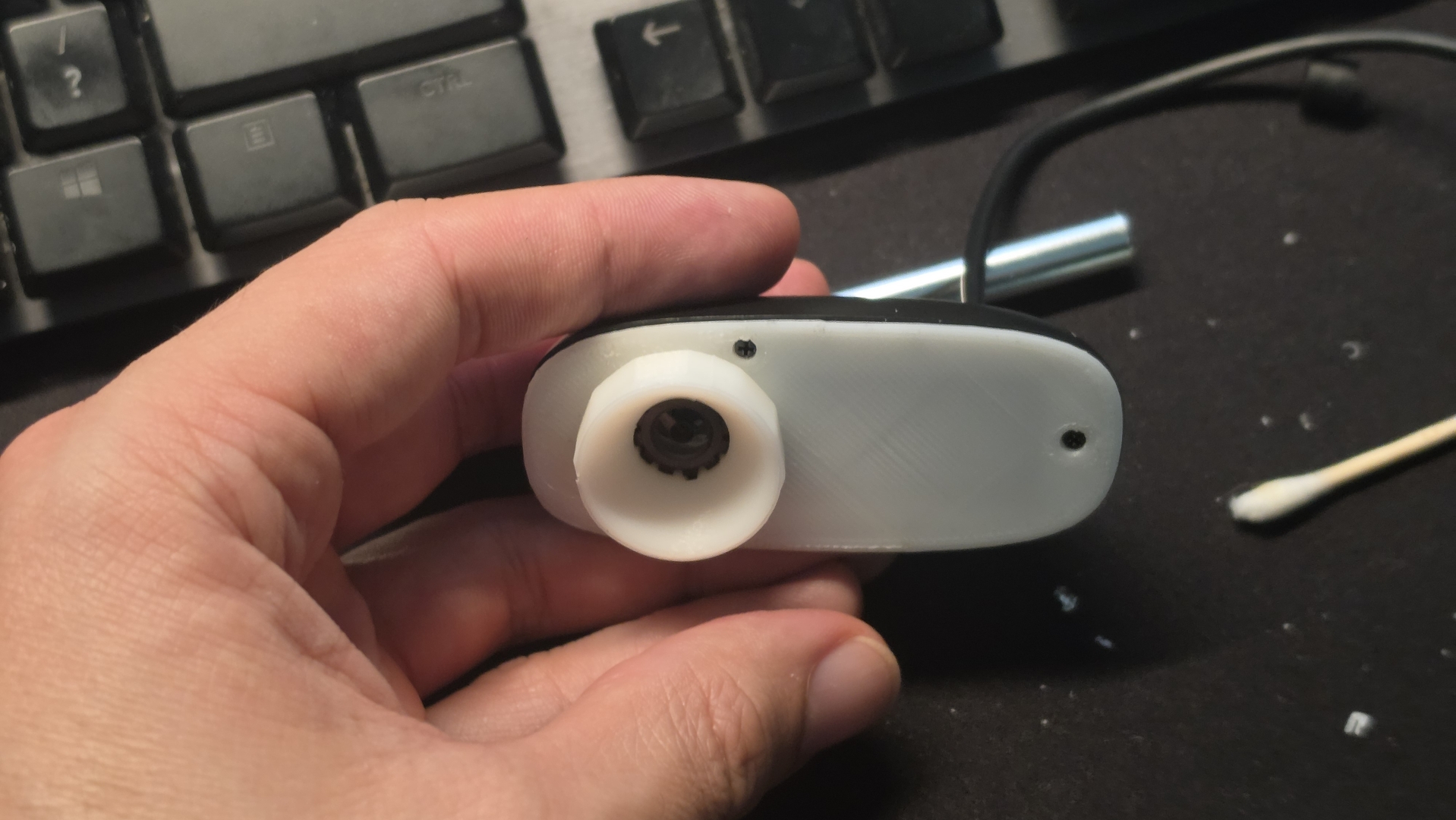
Mod done: the printed face plate is screwed on and the lens ring sticks out, so focus can be adjusted from outside.
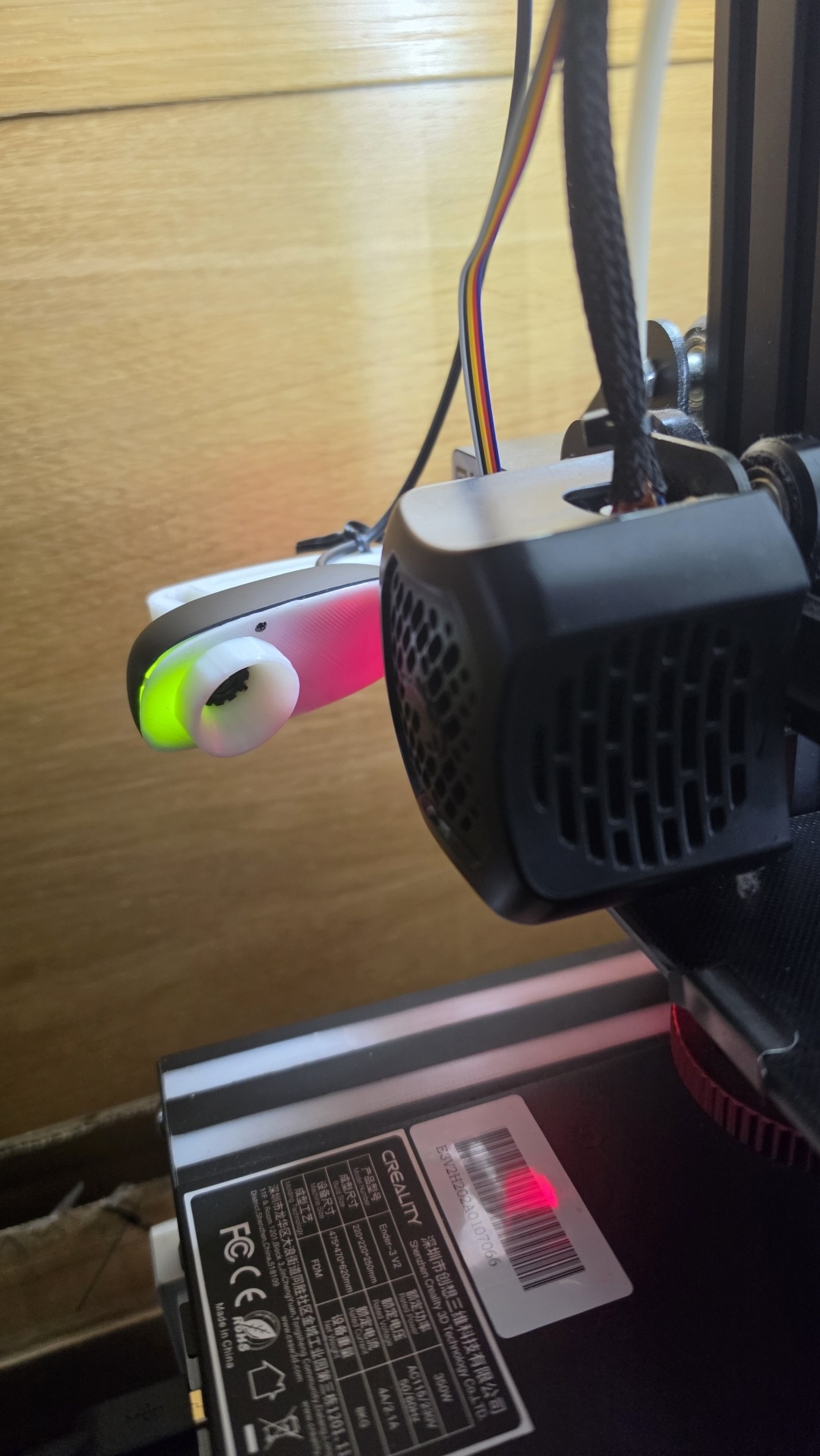
Back on the printer and switched on: the modded C270, now with a white face, next to the stock hotend cover.
Step 8: Stabilised timelapses with Octolapse
OctoPrint’s built-in timelapse catches the head and bed wherever they happen to be, so the video jitters. Octolapse parks them in the same spot for every frame, giving the classic “print growing out of nothing” look. The cost is roughly 1–2 seconds per layer.
- Leave the built-in Timelapse Mode on Off, otherwise you get double snapshots.
- Install Octolapse (I have v0.4.5). In its printer profile, pick Creality3D – Ender 3 (same bed as the V2) and set Slicer Type to Automatic Configuration.
- Cura needs a settings script pasted at the very top of its Start G-code. It’s all
;comments, which Cura fills in with your retraction and speed settings. Re-slice afterwards. - Test the camera profile, then print. Octolapse shows a Snapshot Plan before starting.
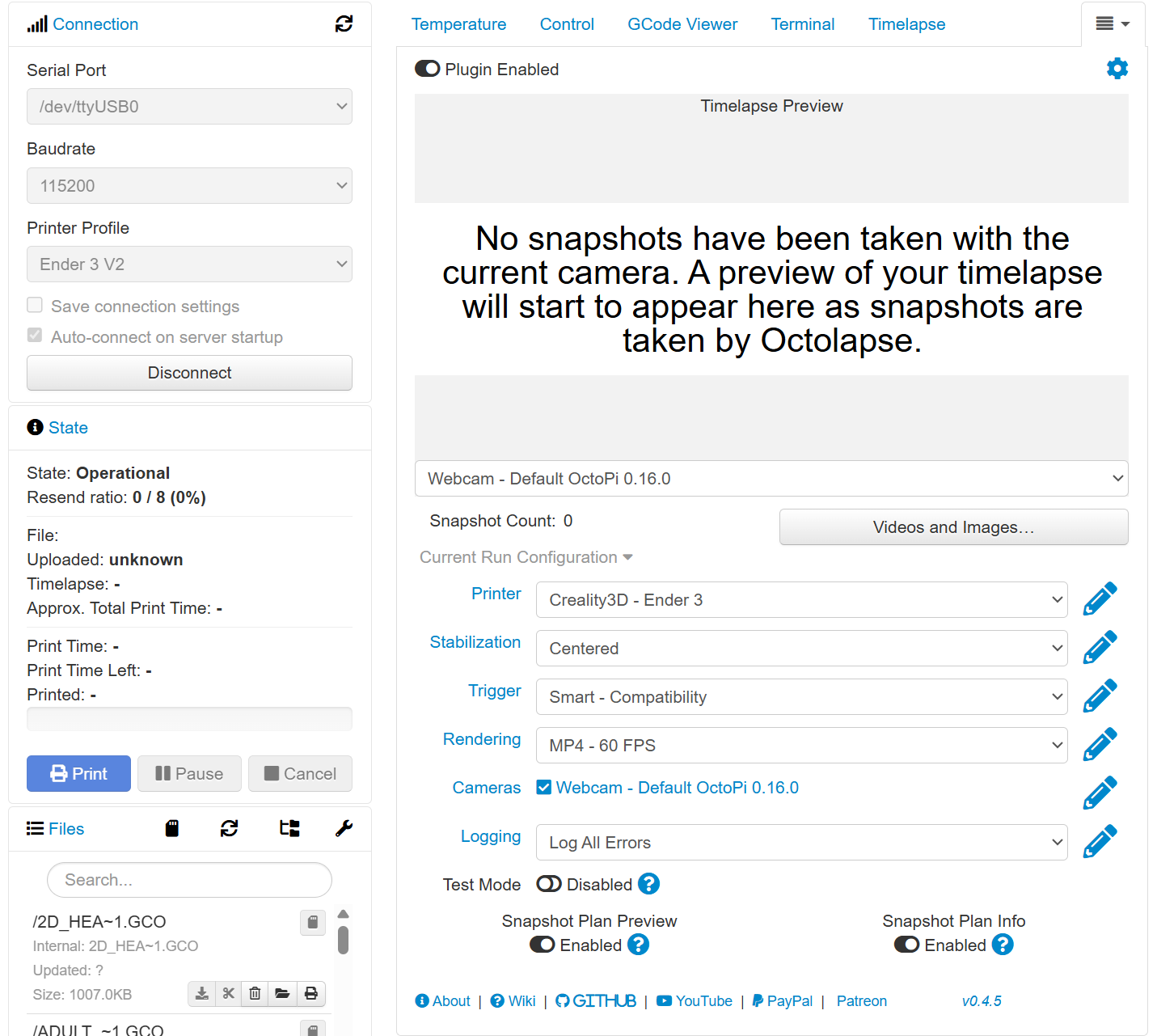
The Octolapse panel before its first run: Creality3D – Ender 3 profile, Centered stabilisation and the Smart – Compatibility trigger. The connection is still at 115200 baud on the stock firmware.
My first plan had 24 snapshots at bed centre (X117.5, Y117.5), adding only 69.7 mm of total travel and saving 89.1% versus the classic trigger.
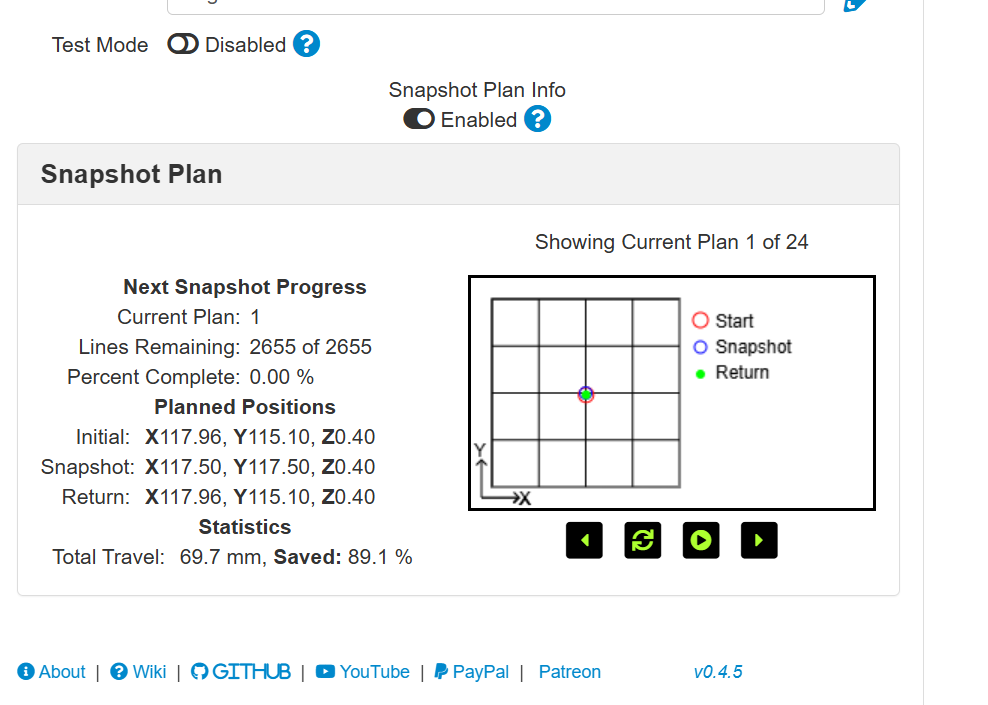
The Snapshot Plan: 24 snapshots taken at the bed centre, 69.7 mm of extra travel in total and 89.1% saved.
Pick the frame rate for the print height. Video length is roughly layers ÷ FPS:
| Print height (0.2 mm layers) | Layers | At 30 FPS | At 10 FPS |
|---|---|---|---|
| ~5 mm | 24 | 0.8 s | 2.4 s |
| ~20 mm (cube) | 100 | 3.3 s | 10 s |
| ~48 mm (Benchy) | 240 | 8 s | 24 s |
Cura gotchas: Octolapse only searches the first and last 1,000 lines of G-code, so big embedded thumbnails can push the script out of range. The Arc Welder plugin can also strip the comments.
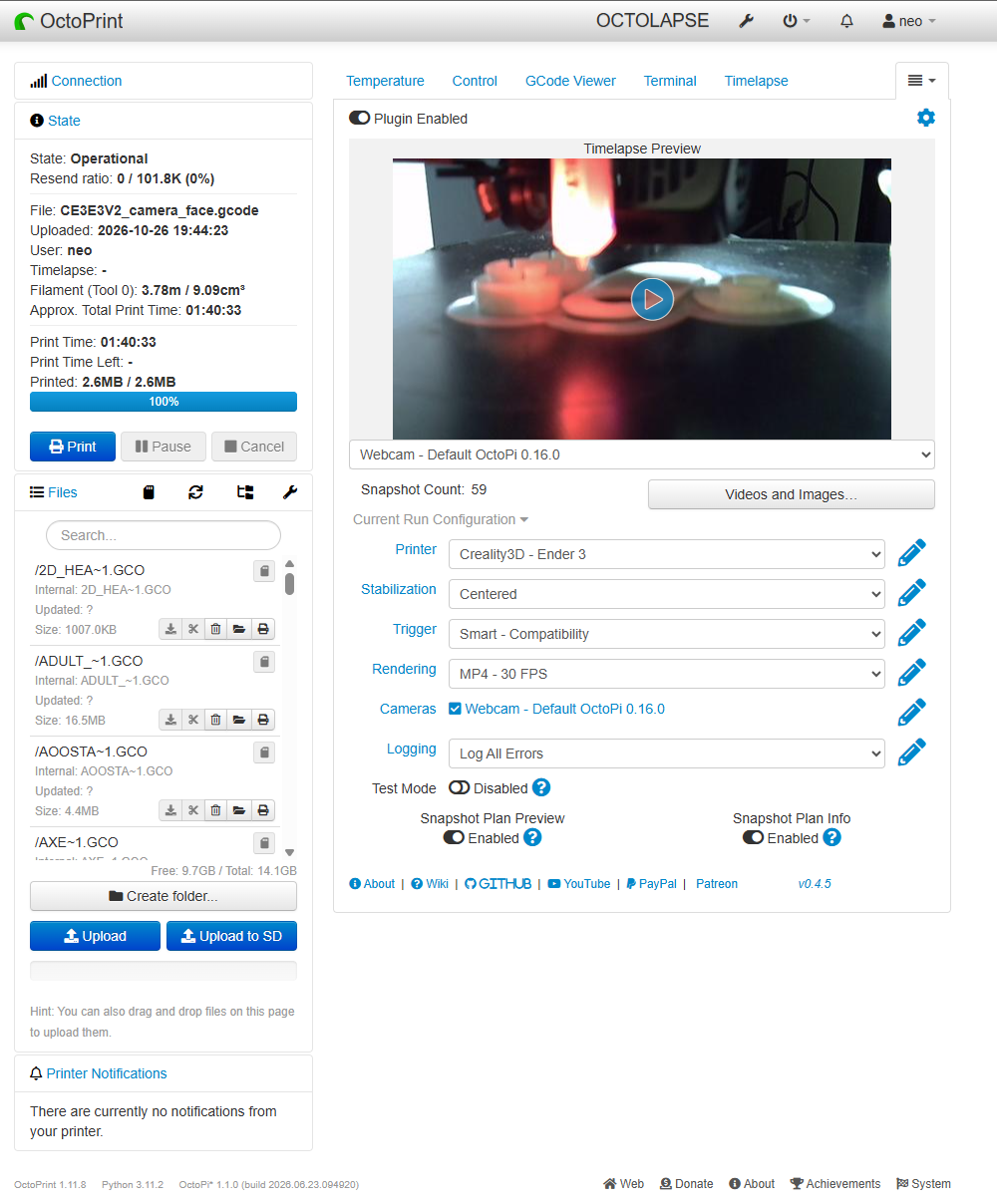
The first full Octolapse run, printing the C270 face plate parts: 1 h 40 m, 59 snapshots and 0 resends out of 101.8K lines. The red glow in the preview frame is the CR Touch’s LED.
Watch out for the probe’s red light. The CR Touch has a bright red LED that sits right in the camera’s view and floods the timelapse frames with red. I printed small black covers that slip over the probe body and block the glare.
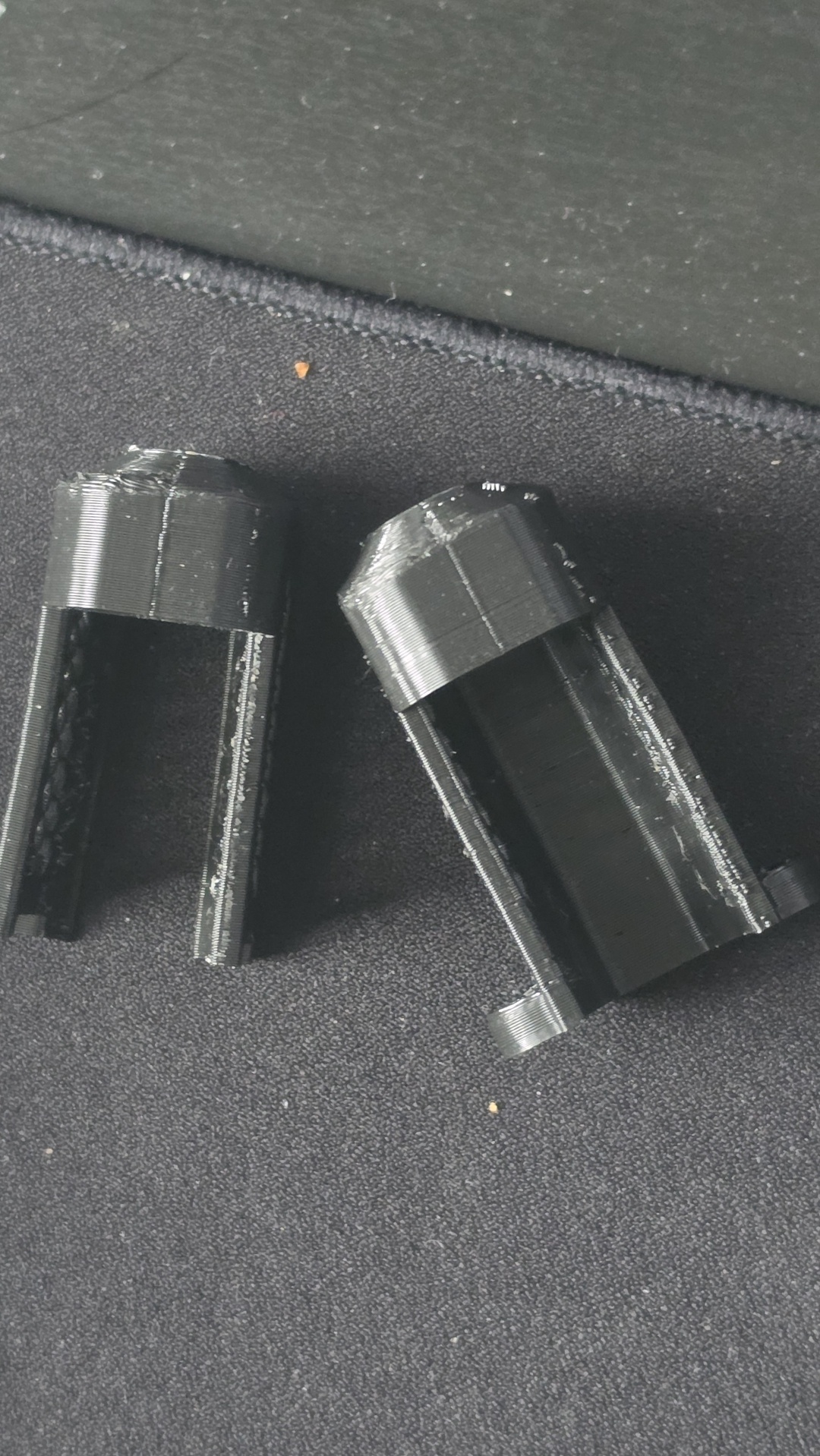
Two printed covers for the CR Touch probe, made to stop its red LED saturating the camera and tinting every timelapse frame red.
Part 3: A new soul with MRiscoC Professional Firmware
In short: firmware is the software running on the printer’s control board and its screen. Creality’s stock firmware is old and basic. MRiscoC’s Professional Firmware is free, built on Marlin (the firmware most hobby printers run), and turns the same stock screen and knob into a far more capable control panel.
What the new firmware adds to the stock screen
You don’t need a new screen to get these; they all appear on the V2’s original display:
| Feature | What it does for you |
|---|---|
| Mesh viewer and editor | Shows the bed mesh as a colour map on the screen, and lets you nudge a single point up or down |
| Tramming wizard | The probe measures each corner and tells you which bed knob to turn |
| Z-offset wizard and live babystepping | Dial in the first layer while it prints, from the Tune menu |
| G-code thumbnail preview | A picture of the model before you start, and again on the print-done screen |
| MPC and PID tuning with a live plot | Temperature tuning from the menu, with a graph on screen |
OctoPrint print status (M73, M75–M77) |
Prints sent from OctoPrint show their progress and time on the printer’s own screen |
Status line messages (M117) |
Scrolling messages from OctoPrint, such as layer numbers |
Filament change (M600) and load/unload menus |
Guided filament swaps, including mid-print colour changes |
| Toolbar shortcuts and park position | Five configurable shortcut buttons, and a park spot you choose |
| Lock screen, colour themes, brightness and sleep | Stop accidental knob turns, restyle the UI, dim the screen when idle |
| End-stop diagnostics and print statistics | Check switches live, and see your print history |
| 250000 baud and binary file transfer | A faster OctoPrint link, and future firmware updates sent over USB |
The full list is on the wiki’s Firmware features page.
Step 9: Flash and set up the new firmware
Stock Creality Marlin was the root of two earlier workarounds: the doubled temperature reports and the mesh that loaded switched off. I replaced it with MRiscoC’s Professional Firmware, a Marlin build optimised for the Ender 3 V2 and S1. The whole job, including recalibration, took about an hour.
Pick the right file
The latest release was 20260106. Each file name encodes the printer, the mainboard and the features:
| Part of the name | Meaning | My printer |
|---|---|---|
Ender3V2 |
Ender 3 V2 | Yes |
422 |
Creality 4.2.2 mainboard (427 is the newer 4.2.7) |
Yes, an early board |
BLT |
BL/3D/CR Touch probe support (MM = manual mesh, no probe) |
Yes, CR Touch |
UBL |
Unified Bed Leveling | Comes with the BLT build |
MPC |
Model Predictive Temperature Control | Comes with the BLT build |
That made Ender3V2-422-BLTUBL-MPC-20260106.bin the only match. Before flashing, check the large chip on your board: these builds are for the STM32F103 (RET6 or RCT6), and some later 4.2.2 boards ship with a GD32 chip instead.
GitHub lists a SHA-256 next to each download, so I checked the file before using it:
Get-FileHash .\Ender3V2-422-BLTUBL-MPC-20260106.bin -Algorithm SHA256
Back up, then flash
- Send
M503in OctoPrint’s Terminal and save the output. Mine held the values worth keeping: E-steps138.80, probe offsetX-45 Y-20 Z-3.24, and the bed PID. - Format a blank microSD card as MBR, FAT32, 4096-byte allocation unit. If the board ignores it, try a card of 16 GB or less.
- Rename the file to something short and unique, such as
F1027.bin. The board skips a file name it has already flashed. - Copy it to the root of the card, switch the printer off and unplug the Pi’s USB cable.
- Insert the card and power on. The screen stays blank for about 15 seconds while it flashes.
The display firmware didn’t need updating for this release.
Restore defaults and put my values back
The install guide says to restore defaults when coming from stock firmware. The new firmware had reset E-steps to 93 and the probe offset to X-41.5 Y-7 Z0, so I re-entered mine:
M502
M500
M92 E138.80
M851 X-45 Y-20 Z-3.24
M500
I didn’t carry over the old hotend PID (MPC replaces it), the old 3×3 mesh lines (a different format from UBL) or the stock motion limits.
Tune the hotend with MPC
MPC models the hotend instead of reacting to the thermistor like PID. Its autotune runs from a cold nozzle, heats to about 200 °C and cycles the part fan, all in about five minutes:
M306 T
M500
| Constant | Measured | Firmware default |
|---|---|---|
| Block heat capacity (C) | 14.17 | 14.40 |
| Sensor responsiveness (R) | 0.2423 | 0.2187 |
| Ambient heat loss (A) | 0.1263 | 0.1257 |
| Heat loss, fan at 100% (F) | 0.1338 | 0.1315 |
All four sit close to the defaults, as expected for a healthy stock hotend. The fan barely cools the heater block, because the stock shroud aims it under the nozzle. I’ll rerun M306 T after fitting a new shroud, as in Part 5.
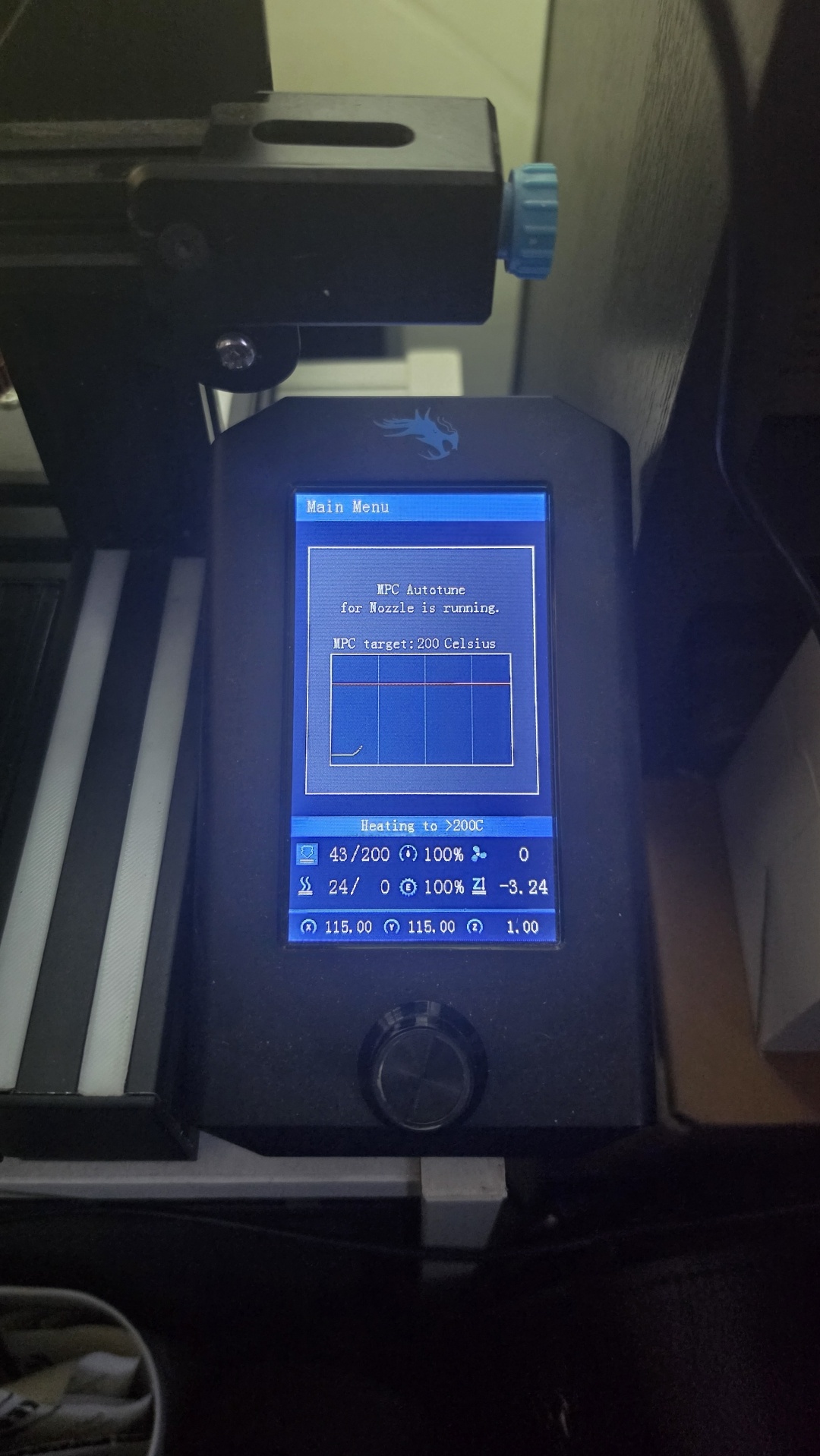
The new firmware on the stock screen: the MPC autotune runs with a live temperature plot heading for 200 °C, and the status bar shows the nozzle at 43/200 °C and the -3.24 mm Z-offset.
Probe a UBL mesh
UBL stores meshes in numbered slots: G29 Sn saves, G29 Ln loads, and after M500 the last saved slot loads at power-on. With the bed at 60 °C:
G28
G29 P1
G29 P3
G29 S0
M500
M420 S1 V
The firmware probes 5×5 points and pulled the right-hand column in to X203, the furthest the probe can reach with its 45 mm offset. Back row at the top, values in mm:
| X25 | X203 | ||||
|---|---|---|---|---|---|
| Back | -0.050 | -0.018 | -0.080 | -0.095 | -0.160 |
| +0.007 | -0.053 | -0.075 | -0.100 | -0.153 | |
| Middle | +0.060 | +0.035 | -0.005 | -0.060 | -0.128 |
| +0.042 | +0.012 | +0.020 | +0.010 | -0.060 | |
| Front | +0.035 | +0.030 | +0.005 | -0.025 | -0.108 |
The spread is 0.22 mm against 0.185 mm on the old 3×3 mesh. That isn’t worse: 25 points simply find more of the bed’s real shape. The shape matches, with the back-right corner lowest. Cura’s start G-code needs no change: G28 then M420 S1 enables the saved mesh. The UBL page warns against M501 there, which wipes the mesh.
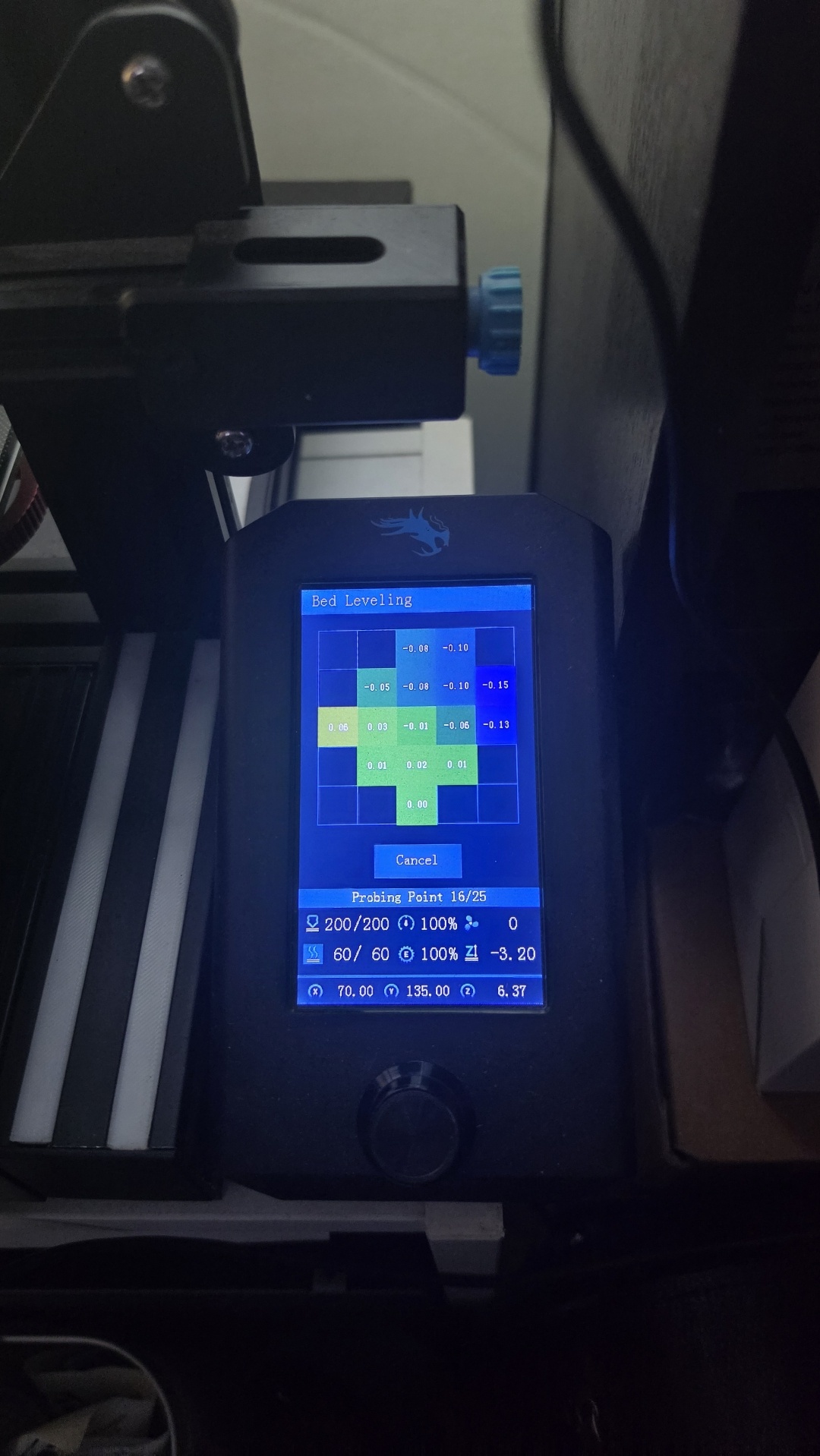
UBL probing on the stock screen: the 5×5 mesh fills in as a colour map as it goes, here at point 16 of 25, with the nozzle at 200 °C and the bed at 60 °C.
OctoPrint changes
From the firmware’s OctoPrint page:
- Baud rate 250000. The firmware runs high-speed serial. It’s also incompatible with the MeatPack plugin.
- Temp-fix plugin removed. Temperature reports arrive as single lines now, so the Step 3 workaround is gone.
- G-code scripts in Settings → GCODE Scripts:
M75before a print starts or resumes,M76after a pause andM77at the end or on cancel. The printer’s own screen then shows OctoPrint jobs. AM117 Octoprint is connectedscript on connection confirms it works. - Protocol fine tuning: SD cancel command
M524,M25removed from the pausing commands, andM524added to the emergency and long-running lists. - Bed Visualizer collection script switched to UBL: heat the bed,
G28,G29 P1,G29 P3,G29 S0,M500, then@BEDLEVELVISUALIZERbeforeM420 S1 V. One click now probes, saves and draws a fresh mesh.
First-layer test
I printed the 3×3 calibration squares designed for this firmware’s UBL builds. A paper test had suggested Z-3.20, but the squares told the truth. I babystepped a little at a time and reprinted until all nine came out even, and finally settled on Z-3.27, slightly lower than the old Z-3.24. M500 saved it.
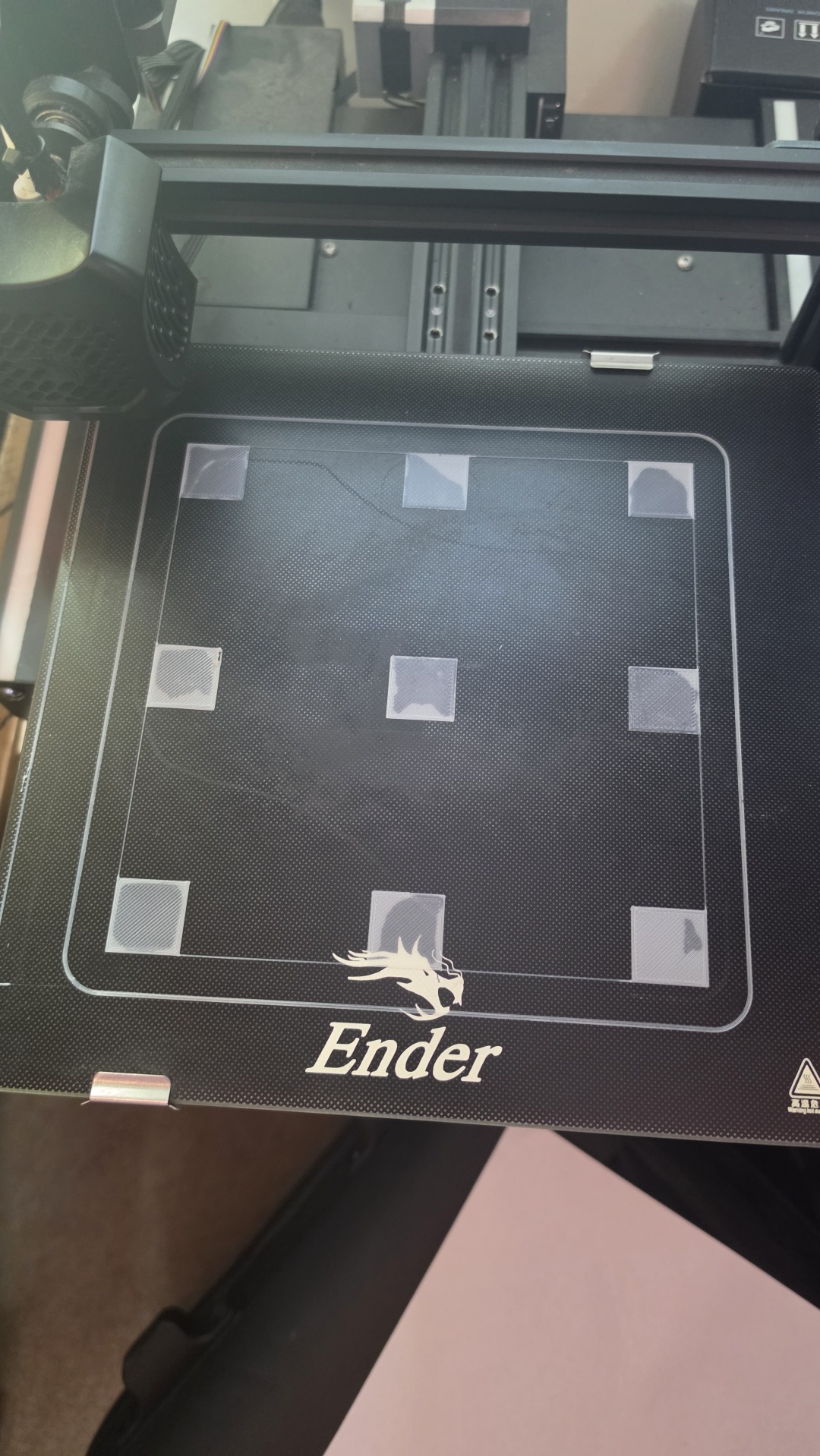
The 3×3 first-layer squares at my final Z-offset of -3.27 mm, printed across the whole bed so every corner, edge and the centre get checked at once.
Finally I saved a fresh M503 dump next to the stock one. With both, a future reflash takes minutes: restore defaults, paste in four lines (E-steps, probe offset, MPC, bed PID) and probe a new mesh. Later updates can go through OctoPrint’s Firmware Updater plugin instead of the SD card.
Part 4: Giving it a face with OctoDash on a 7” touchscreen
In short: a touchscreen wired to the Pi shows OctoDash, a big-button dashboard for OctoPrint. You can preheat, move the head, change filament and start or pause prints right at the printer, with no phone or laptop needed.
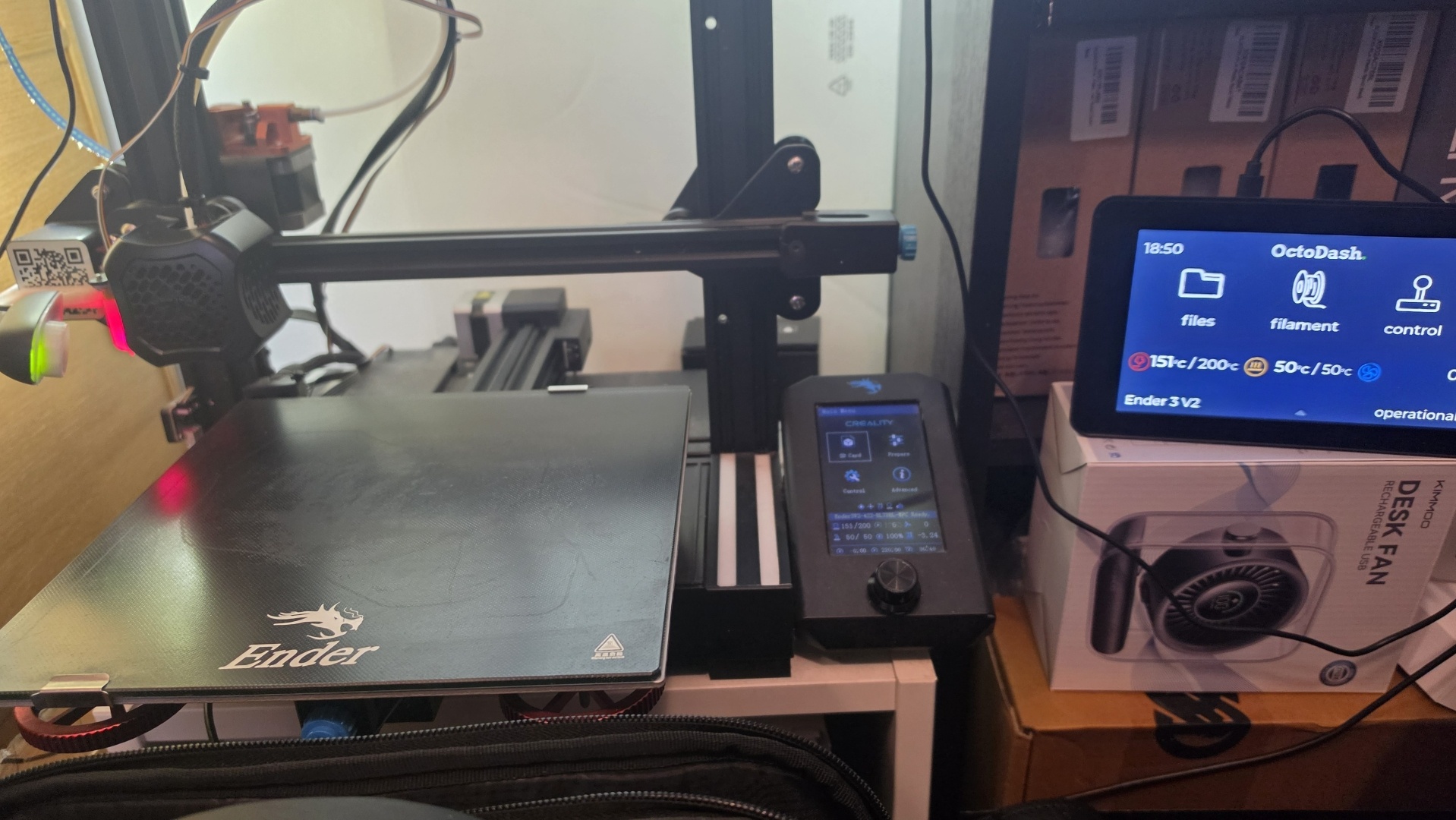
OctoDash on the 7” touchscreen beside the printer: big buttons for files, filament and control, with the nozzle heating towards 200 °C and the bed at 50 °C. The printer’s own screen shows the new firmware’s main menu.
Choosing a touchscreen
A screen next to the printer lets you start, pause and preheat without a phone. I’m using the original official 7” display, but The Pi Hut’s touchscreen range lists 84 options from about £14 to £190. These are the ones that make sense for OctoPrint, with prices as of 27 October 2026:
| Screen | Size / resolution | Connection | Price | Notes |
|---|---|---|---|---|
| Waveshare 3.5” Capacitive Touch IPS | 3.5” / 320×480 | Small Pi-mounted screen | £18.30 | Cheapest usable option. Cramped for a full touch UI |
| DFRobot metal case with 3.5” TFT | 3.5” / 480×320 | Built into a Pi 4 case | £29.90 | Case and screen in one, neat on a printer frame |
| Raspberry Pi Touch Display 2 – 5” | 5” | DSI | £38.40 | Official and cheap. Native portrait, so it needs rotating for OctoDash |
| Waveshare 5” DSI | 5” / 800×480 | DSI | £38.40 | Same resolution as my 7”, in a smaller package |
| Waveshare 4.3” DSI QLED | 4.3” / 800×480 | DSI | £44.20 | Compact enough to mount on the frame |
| Waveshare 7” Capacitive (Low Power) | 7” / 800×480 | HDMI + USB touch | £44.20 | Cheapest 7”, and HDMI works with non-Pi hosts too |
| Pimoroni HyperPixel 4.0 | 4” / 800×480 | Sits on the GPIO header | From £45 | Sharp and compact, but uses the GPIO pins |
| Waveshare HDMI 7” with case | 7” / 800×480 | HDMI + USB touch | £50 | Comes cased; good for thin clients and old PCs |
| Raspberry Pi Touch Display (original 7”) | 7” / 800×480 | DSI | £57.60 | What I use. Widely used with OctoDash |
| Raspberry Pi Touch Display 2 – 7” | 7” | DSI | £57.60 | Newer official model, same price as the original |
| Waveshare 7” QLED | 7” / 1024×600 | Pi display | £60.50 | Sharper than 800×480 at 7” |
| Raspberry Pi Touch Display 2 – 10” | 10” | DSI | £76.80 | Big enough to double as a webcam monitor |
How to choose:
- DSI screens use the Pi’s ribbon-cable port, leaving HDMI and USB free. The Pi Zero 2 W has no standard DSI connector, so check compatibility or use Waveshare’s 7” kit for Pi Zero (£50.90).
- HDMI + USB touch screens work with any host, including the thin clients and old PCs above.
- Small GPIO-mounted screens are the cheapest, but often need extra drivers on Bookworm-based OctoPi, and they take over pins you might want for lights or relays.
- Pick a landscape screen if you want OctoDash: its README lists 16:9, 16:10 and 4:3 in landscape. Skip the round, square and long “bar” displays in the range.
- Power it properly. A 7” panel plus a webcam is too much for a Pi 3B’s single supply. Give larger screens their own power.
Step 10: Turn the official 7” display the right way up
OctoPi 1.1.0 uses the KMS display driver, so the old lcd_rotate=2 trick doesn’t work. Two changes are needed, one for the picture and one for touch:
# rotate the picture (appends to the single line in cmdline.txt)
sudo sed -i '1 s/$/ video=DSI-1:800x480@60,rotate=180/' /boot/firmware/cmdline.txt
# flip touch to match, and stop auto-detect overriding it
sudo sed -i 's/^display_auto_detect=1/#display_auto_detect=1/' /boot/firmware/config.txt
echo 'dtoverlay=vc4-kms-dsi-7inch,invx,invy' | sudo tee -a /boot/firmware/config.txt
cmdline.txt must stay a single line. Back up both files first.
Step 11: Install OctoDash
OctoDash runs full-screen on the Pi’s display and talks to OctoPrint behind the scenes. It’s built on Electron, which means it carries its own Chromium browser. A Pi 3B copes, but on 1 GB of RAM it pays to keep other plugins lean.
1. Run the installer over SSH, as your normal user and not with sudo. Some steps take about five minutes on a Pi 3B:
bash <(wget -qO- https://github.com/UnchartedBull/OctoDash/raw/main/scripts/install.sh)
2. Choose plugins. The script offers to install OctoPrint plugins. I ticked only two:
| Plugin | Choice | Why |
|---|---|---|
| OctoDash Companion | Yes | OctoDash’s own helper plugin |
| Display Layer Progress | Yes | Needed for the layer count and progress display |
| Preheat Button | No | OctoDash can set temperatures itself |
| Enclosure | No | Only for enclosure sensors and relays |
| PrintTimeGenius | No | Already installed |
3. Set the feed length and speed. OctoDash uses these to pull filament out and push it back in during a filament change. For feed length, measure the visible white Bowden tube from the extruder fitting to the hotend fitting (usually 350–400 mm on a stock V2) and round down. That stops the fast feed a few centimetres above the nozzle, so it never rams plastic in at speed. For feed speed, 30 mm/s sits well under the firmware’s 45 mm/s extruder limit.
4. Enable CORS in OctoPrint. OctoDash is a desktop app rather than a page OctoPrint serves, so OctoPrint’s API rejects its requests until you tick Settings → API → Allow Cross Origin Resource Sharing (CORS), save and restart OctoPrint. CORS doesn’t bypass the login or API key; give OctoDash its own application key so you can revoke it separately.
5. Turn on console autologin with sudo raspi-config → System Options → Boot / Auto Login → Console Autologin, so OctoDash starts at boot. Anyone with physical access then gets a logged-in session, which is fine on a desk at home.
6. Fix the rotation inside X. The rotate=180 from Step 10 only turns the text console. OctoDash runs under X, which ignores it, so add an xrandr line to ~/.xinitrc:
#!/bin/sh
xset s off
xset s noblank
xset -dpms
xrandr --output DSI-1 --rotate inverted
ratpoison &
octodash --no-sandbox
Touch already lines up, because the invx,invy options from Step 10 flip it at driver level. Don’t add a second touch transformation as well, or touch ends up flipped twice.
7. Layer progress needs nothing in Cura. Cura already writes a ;LAYER: comment at every layer change, and Display Layer Progress reads it when a file is uploaded. Re-upload anything you sent before installing the plugin, and print from OctoPrint rather than the SD card.
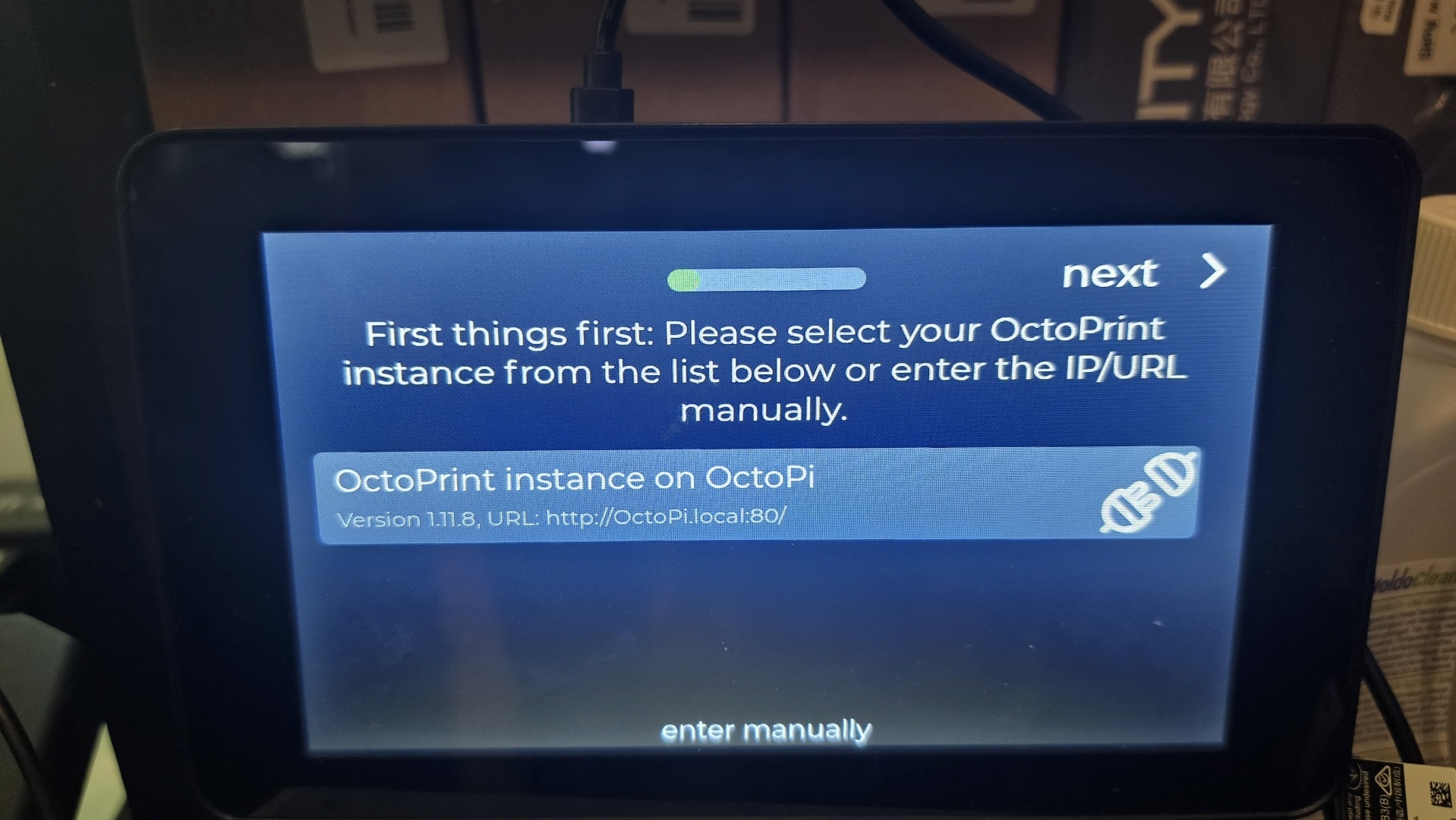
OctoDash’s first-run wizard finds OctoPrint on the network by itself: version 1.11.8 at http://OctoPi.local:80/. Tap it, then approve the API key request in OctoPrint.
Bonus: under-voltage warnings on the screen
OctoPrint’s lightning-bolt power warning only shows in the web UI, not in OctoDash. This small script checks the Pi’s power state each minute and flashes a message over OctoDash through ratpoison, the lightweight window manager it runs under. Save it as /usr/local/bin/pi-power-watch.sh and make it executable with chmod +x:
#!/bin/bash
# Show Raspberry Pi power/throttling problems on the OctoDash screen
state=$(vcgencmd get_throttled | cut -d= -f2)
val=$((state))
msg=""
(( val & 0x1 )) && msg="UNDER-VOLTAGE NOW"
(( val & 0x4 )) && msg="${msg:+$msg / }CPU THROTTLED"
(( val & 0x8 )) && msg="${msg:+$msg / }TEMP LIMIT"
if [ -z "$msg" ] && (( val & 0x10000 )) && [ ! -f /tmp/.uv-warned ]; then
    msg="Under-voltage happened since boot"
    touch /tmp/.uv-warned
fi
if [ -n "$msg" ]; then
    logger -t pi-power "$msg ($state)"
    DISPLAY=:0 ratpoison -c "echo !! Pi power: $msg ($state)"
fi
Run it every minute with crontab -e and the line * * * * * /usr/local/bin/pi-power-watch.sh. Every warning also lands in the system log, so journalctl -t pi-power shows when short dips happened.
Part 5: A new skin with the Clean Shroud 2.0
In short: the cover around the hotend carries two fans. One keeps the hotend’s heatsink cool so filament doesn’t melt too early; the other blows on each fresh layer to set it. I swapped Creality’s chunky stock cover for a printed one, with a white Creality fan grill on the front.
Step 12: Print and fit the new shroud
I printed the Clean Shroud 2.0, an original design that replaces the V2’s stock shroud. It holds the stock 4010 blower fan with its mounting, plus the hotend fan; the designer sized that slot for a 40×20 mm fan, but the V2’s stock 40×10 mm hotend fan fitted fine. Reusing both stock fans meant the upgrade cost only filament.
- Print the parts with the designer’s settings: 0.12 mm layers and 100% infill. Print the shroud open side up and front side down, with 10% zig-zag supports, and the fan grill with its Creality logo facing up. PETG, ABS or PLA all work; PETG or ABS cope better with the heat this close to the hotend.
- Fit it with the printer off and cold. Unscrew the stock shroud and move the fans across. The original screws still work: the designer suggests warming one screw with a lighter, gently screwing it into the hole to cut a thread, then backing it out and letting everything cool.
- Add the grill. Once the hotend fan is mounted, fix the white Creality-logo grill to the front of the shroud with double-sided tape.
- Retune the temperatures. A new duct changes how much air reaches the heater block, so rerun the MPC autotune from Step 9:
M306 T, thenM500.
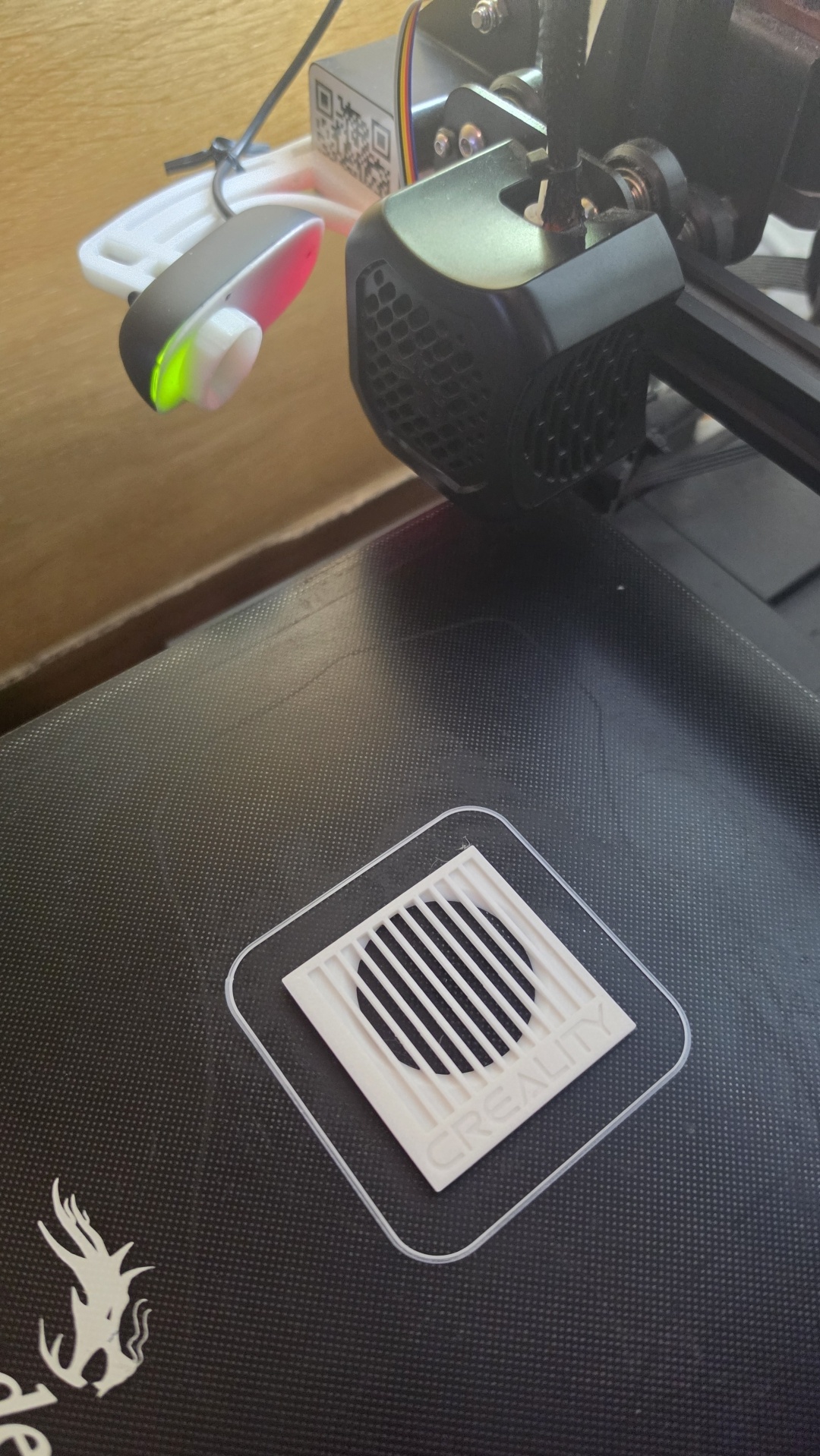
The white Creality-logo fan grill fresh off the bed, printed logo side up. The stock cover is still on the hotend behind it.
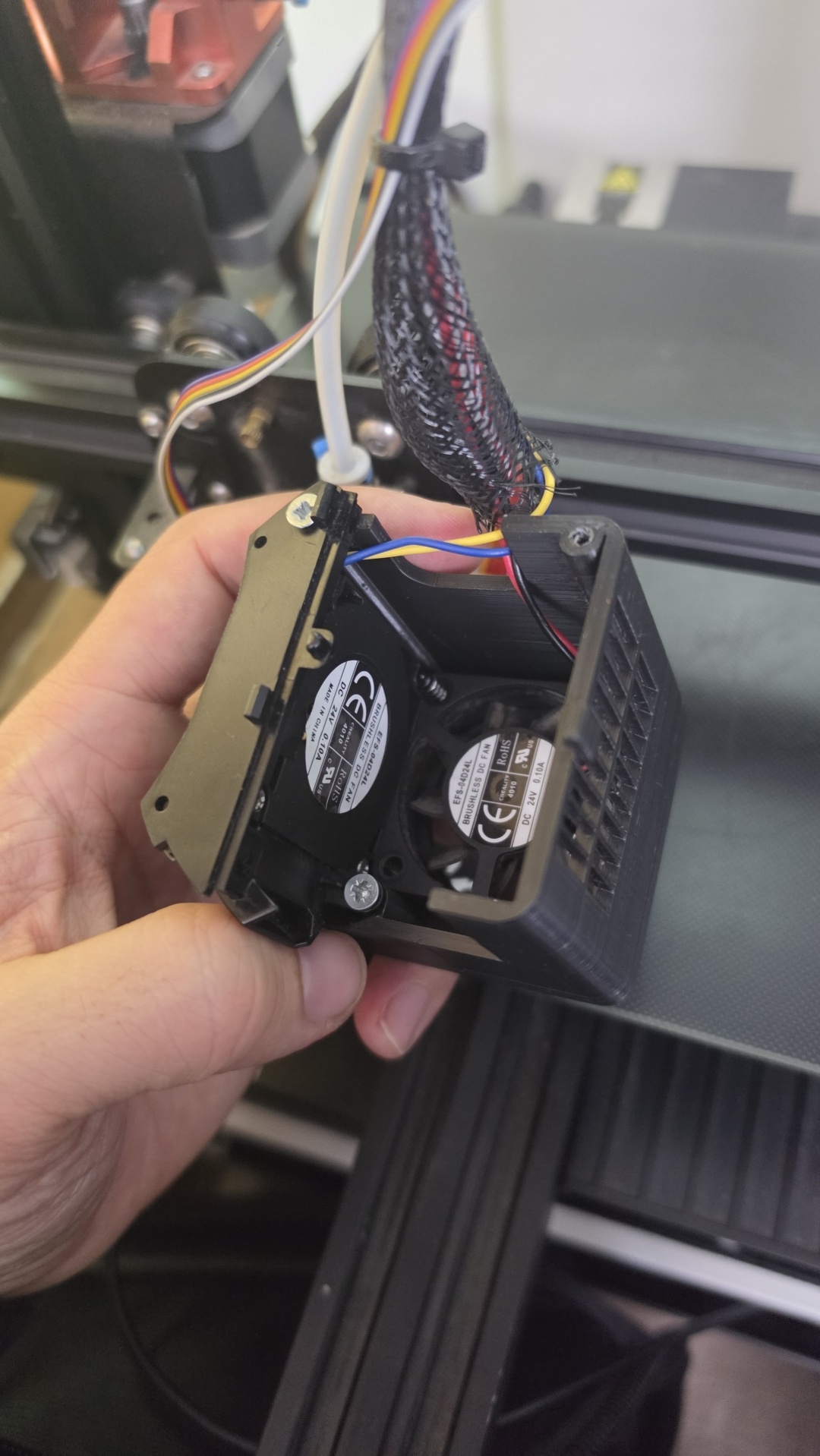
Inside the Clean Shroud: both stock Creality fans moved across. Their labels read 4010, 24 V, 0.10 A: the blower on its mount on the left, the hotend fan on the right.
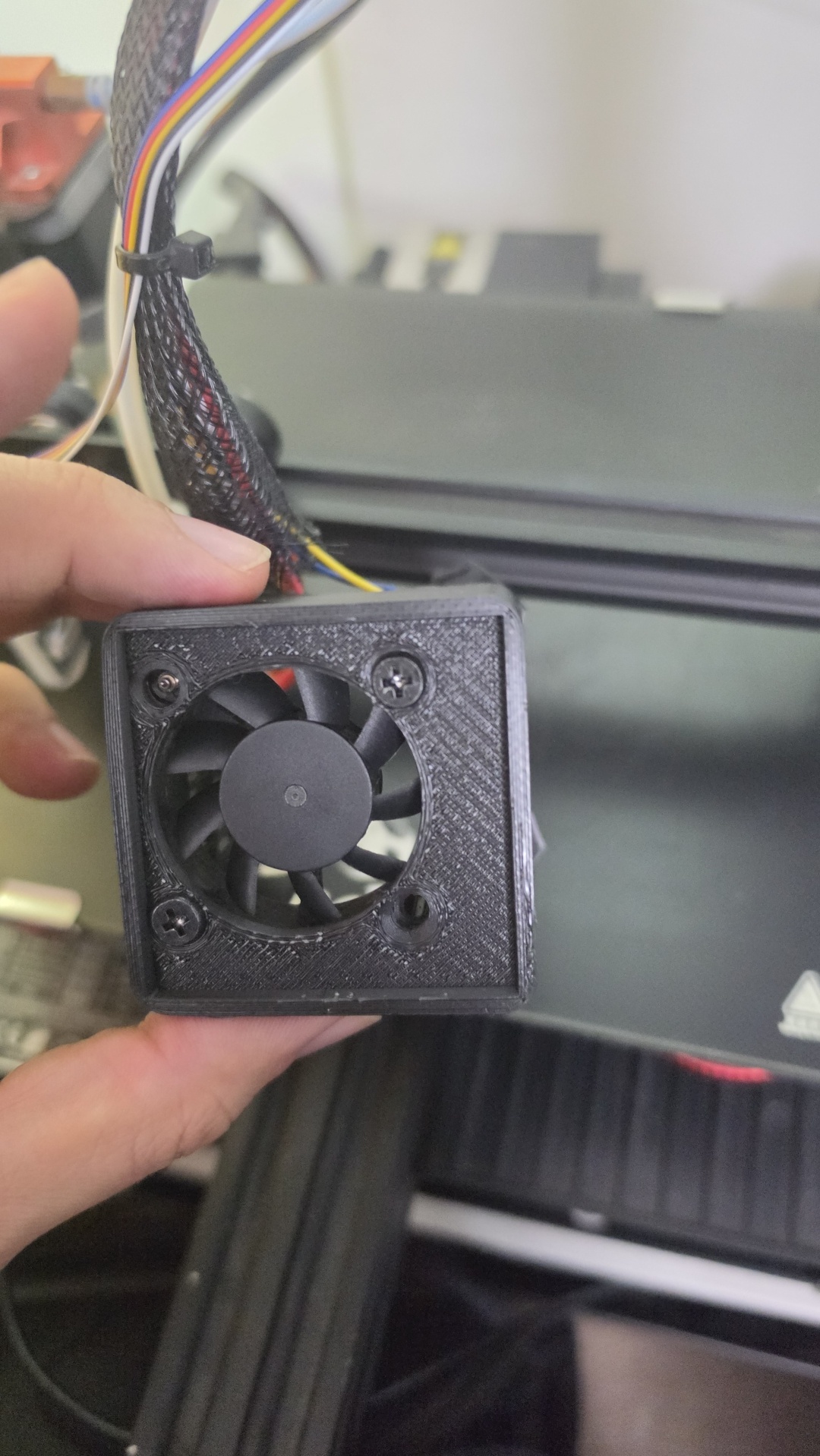
The front of the shroud with the stock 40×10 mm hotend fan screwed in, before the grill goes on.
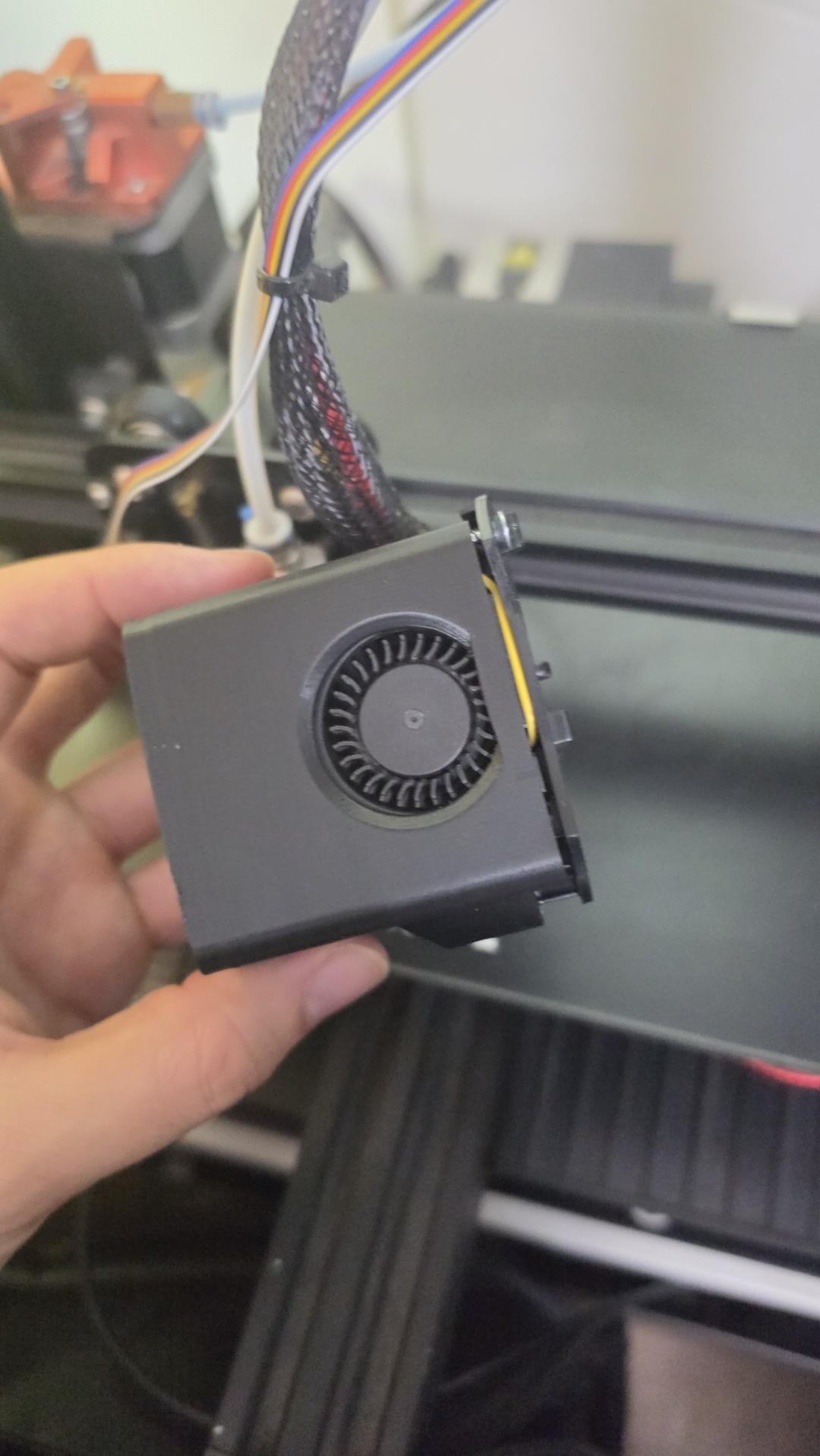
The side of the shroud, where the stock 4010 blower sits. It’s the fan that cools each fresh layer.
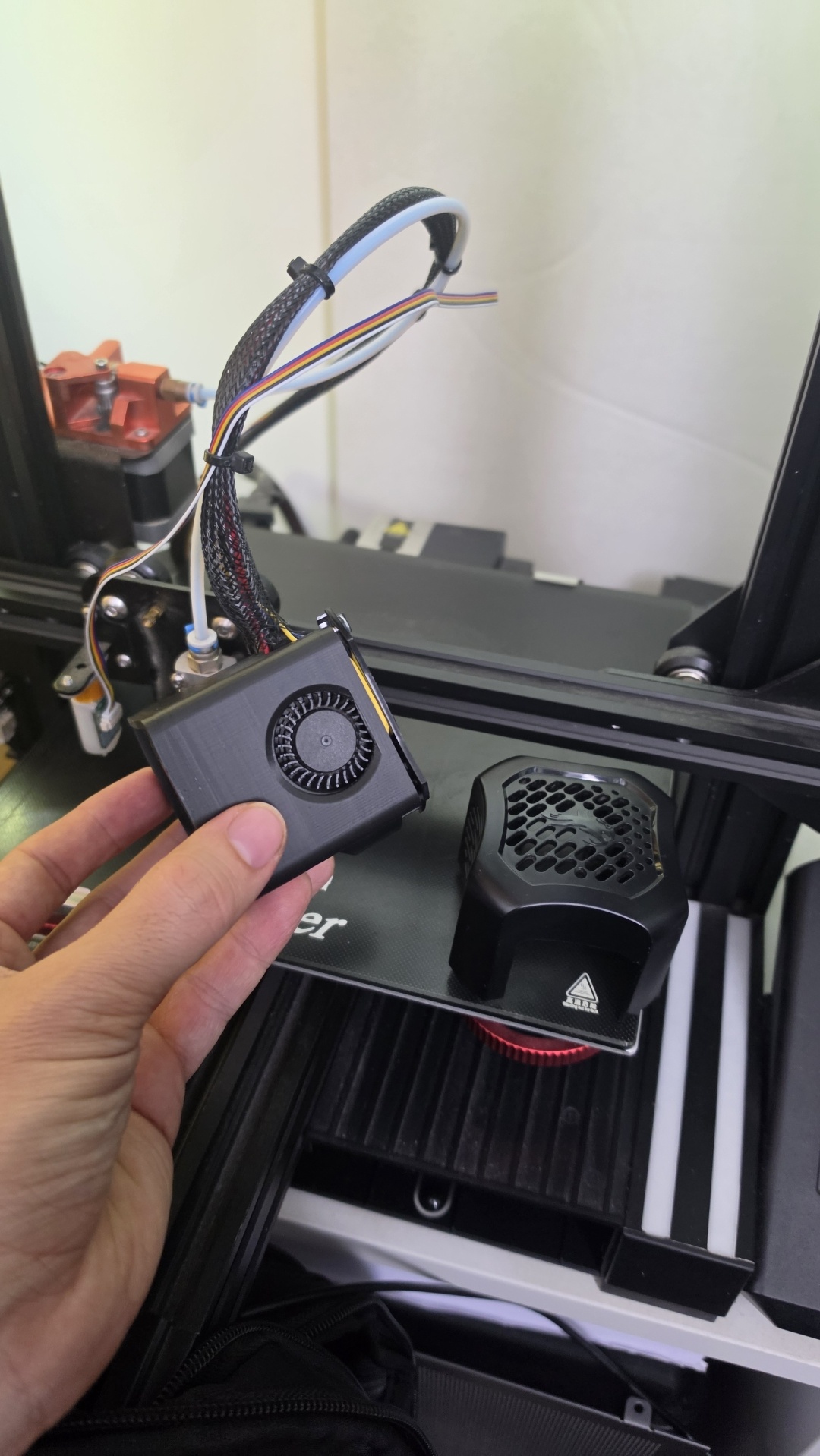
Old and new: the printed Clean Shroud in hand, and the stock Creality cover on the bed.
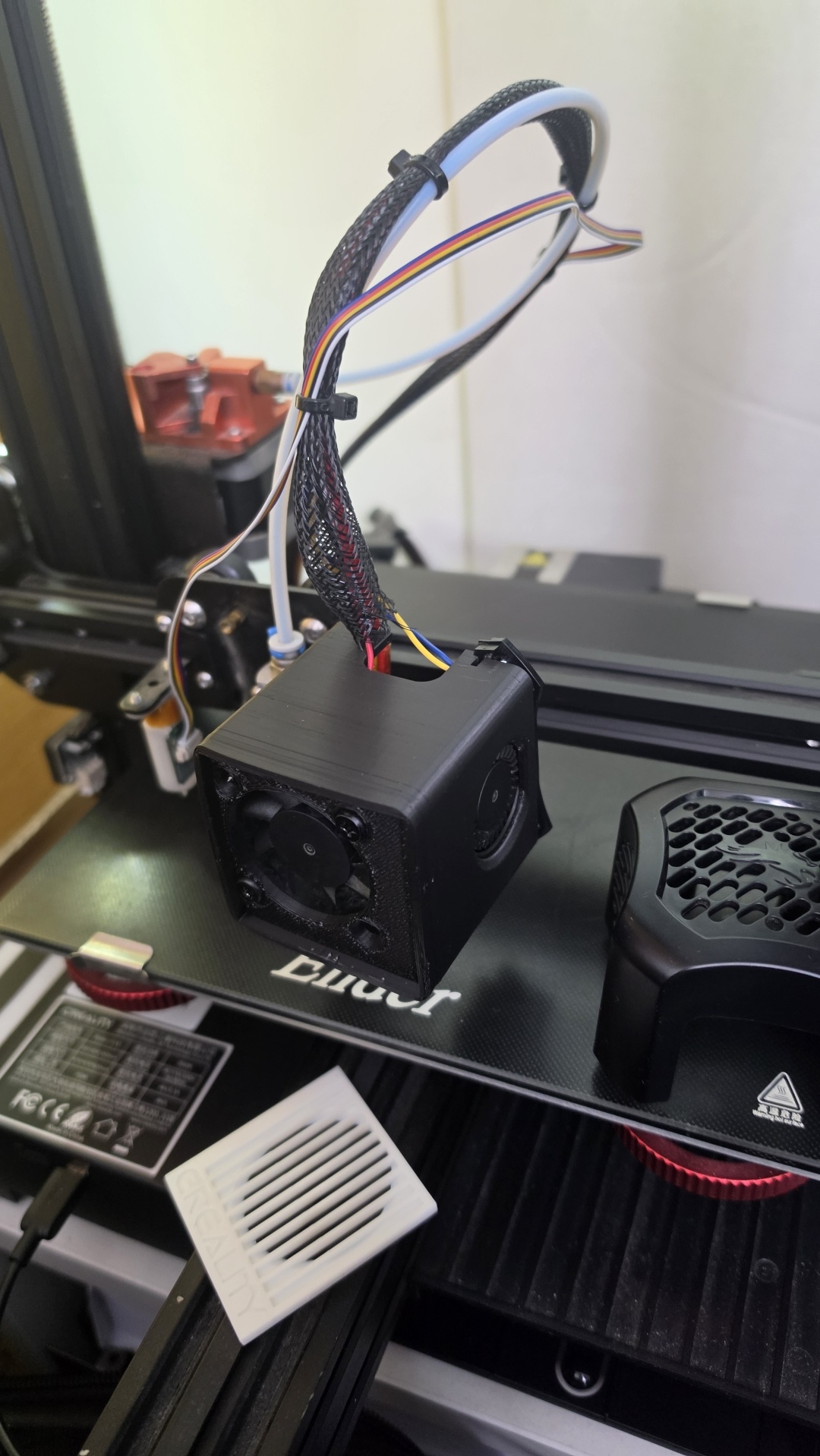
Fitted: the Clean Shroud on the hotend, the stock cover retired to the bed, and the white grill waiting to go on.
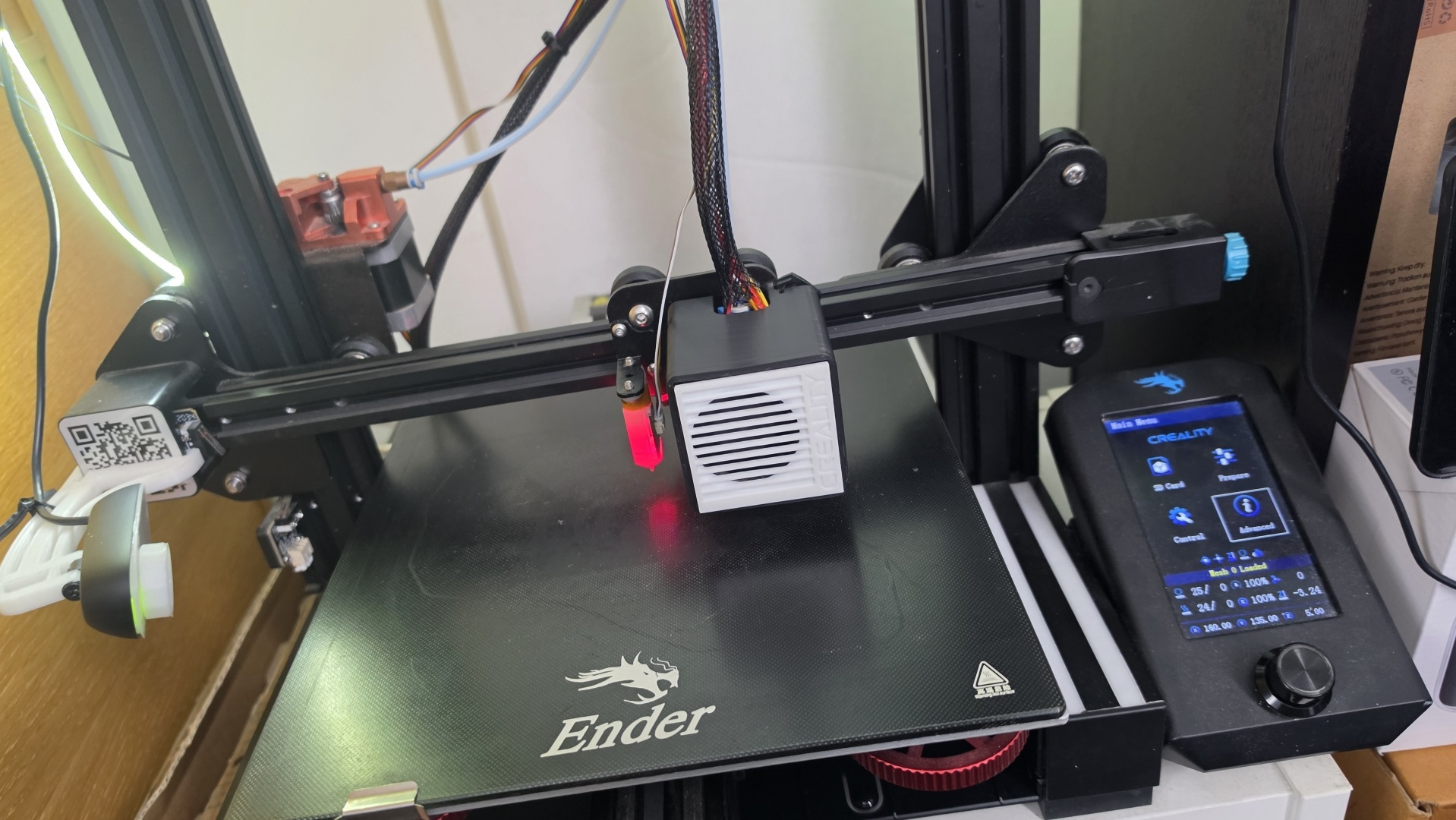
Finished: the Clean Shroud with its white Creality-logo grill. The printer’s screen shows “Mesh 0 Loaded”, so the saved bed mesh is active.
What part-cooling fan speed to use
The blower’s speed is set in your slicer (Cura’s Cooling section), and the right value depends on the material:
| Material | First layer | Rest of print | Why |
|---|---|---|---|
| PLA | 0% | 100% | Ramp to full by layer 3–4; best overhangs and bridges |
| PETG | 0% | 30–50% | More cooling weakens the bond between layers |
| TPU | 0% | 50–100% | Prints slowly, so cooling helps it hold its shape |
| ABS / ASA | 0% | 0–20% | Cooling causes warping and splits; an enclosure helps |
The hotend fan is different: it always runs at full speed and isn’t set in the slicer.
Part 6: The ghost family
Every upgrade needed a test print, and in the last week of October the obvious choice was ghosts. The first properly focused Octolapse timelapse was A Trio of Halloween Ghost Dogs by OddPlasticity, a pet-ghost print that was awarded in Printables’ 2023 Halloween contest. By 31 October a whole family of ghosts had joined them.
Ghosts make surprisingly good test prints. Their smooth curves show up layer lines and ringing, their drooping edges test cooling, and small details like ears and tails test retraction.
The payoff: a timelapse of the last ghost I printed, filmed through the same C270 after the focus mod. Every layer is sharp. Compare it with the blurry first ghost from Step 7.
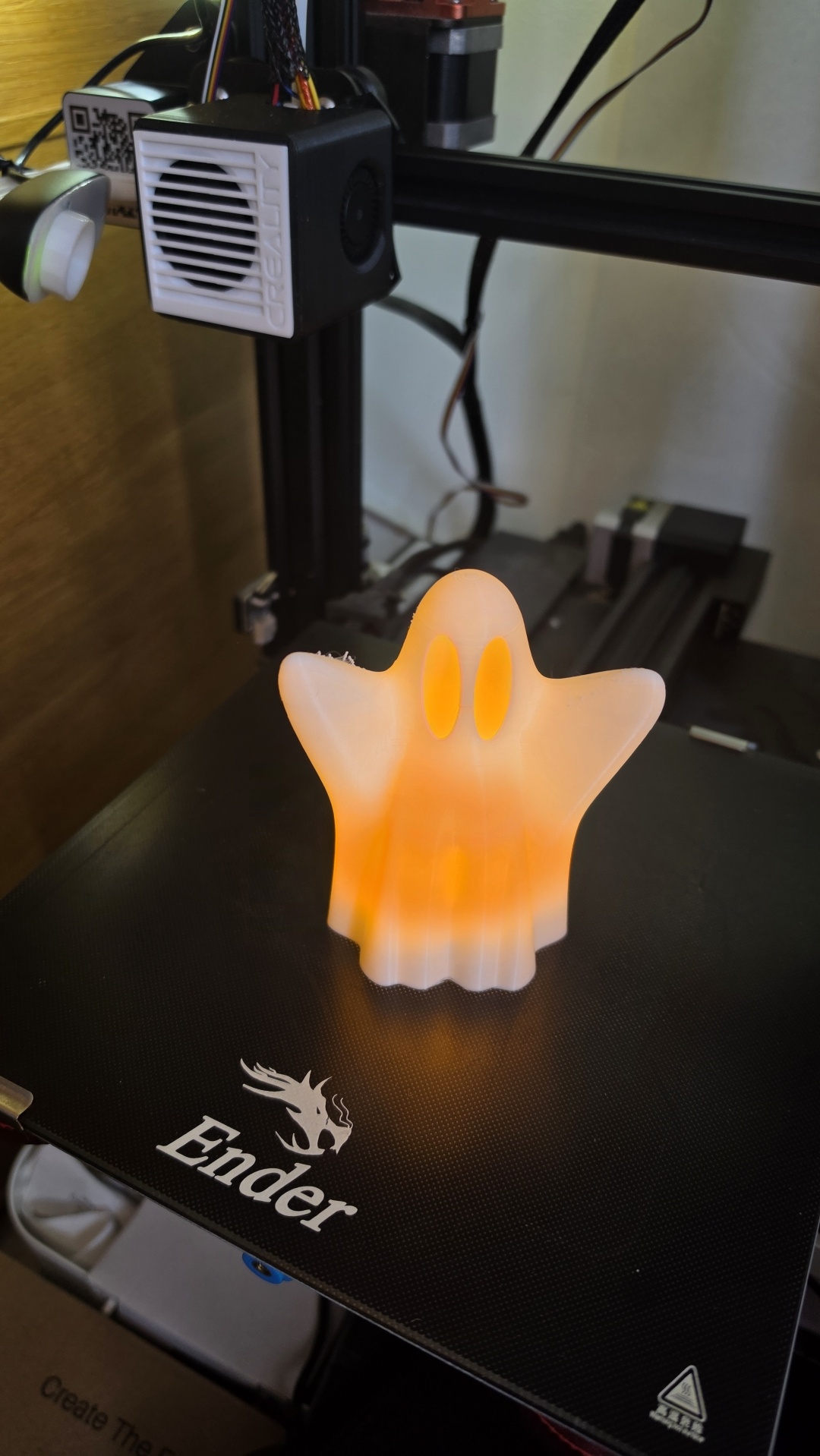
A ghost glowing orange from a light inside it, sitting on the bed under the newly fitted Clean Shroud.
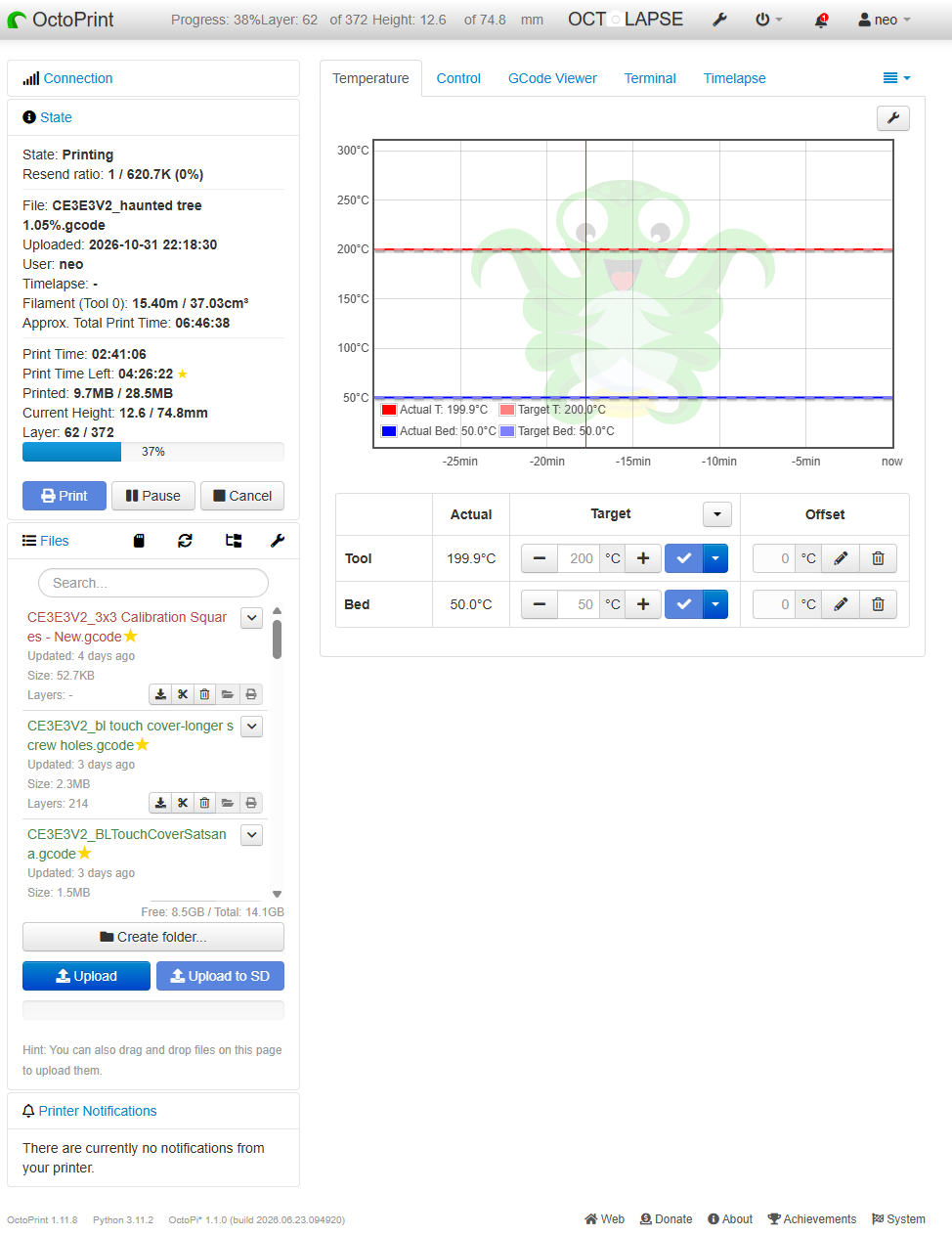
Printing the Haunted Tree on the new firmware: layer 62 of 372, with Display Layer Progress showing the layer and height in the navbar. MPC holds the nozzle at 199.9 °C against a 200 °C target, and the file list shows the 3×3 calibration squares and the CR Touch cover prints.
Fully back from the dead
A week earlier this printer was gathering dust. Now, on nothing but free, open-source software:
- I slice in Cura and click Print with OctoPrint; no more SD cards.
- A focused camera lets me watch every print from my phone, anywhere, over Tailscale.
- Every print gets a smooth, stabilised Octolapse timelapse.
- The stock screen shows OctoPrint’s progress, a bed mesh viewer and live temperature tuning.
- A 5×5 probed mesh and an MPC-tuned hotend give an even first layer every time.
- OctoDash on the 7” touchscreen runs the printer without a phone, and warns me if the Pi’s power dips.
- A clean new shroud makes it look the part.
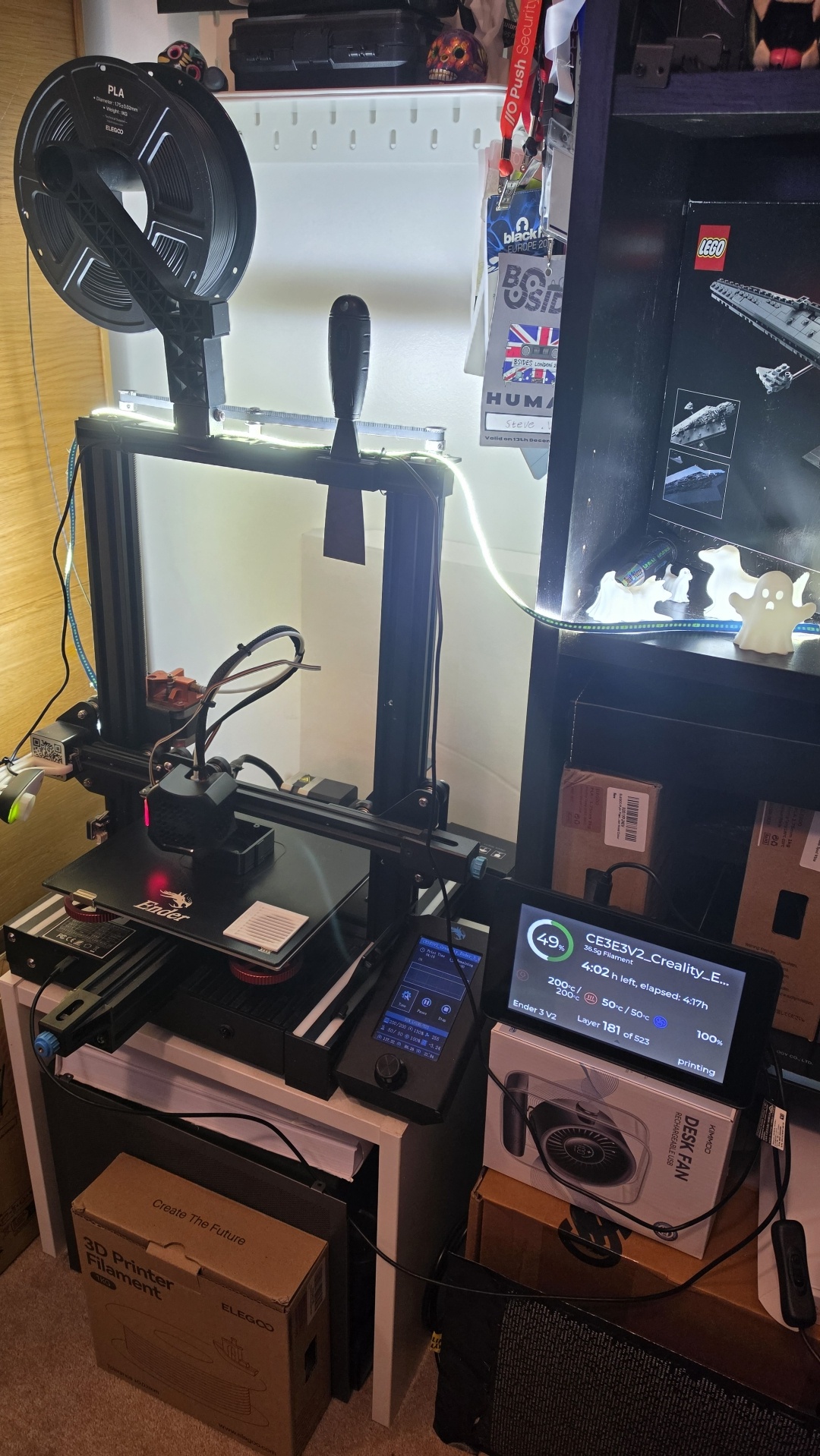
The whole resurrected setup: spool holder and LED strip on top, the modded camera on the left, and OctoDash showing a print at 49%, layer 181 of 523, with 4 hours 2 minutes left. The ghost family watches from the shelf.
Lessons learned
Power is the number-one problem on a Pi 3B
After adding the webcam, vcgencmd get_throttled returned 0x50005: under-voltage and CPU throttling happening right now, not just at some point since boot. That’s the classic cause of mid-print disconnects and SD card corruption.
| Value | Meaning |
|---|---|
0x0 |
All good, now and since boot |
0x50000 |
Under-voltage happened earlier, fine now |
0x50005 |
Under-voltage and throttling right now |
What I learned:
- A 5 V / 850 mA charger is nowhere near enough. A Pi 3B needs 5.1 V at 2.5 A.
- A generic 5 V / 3 A adapter has the current but not the voltage headroom once its cable drops some.
- The official 12.5 W supply made the biggest difference, and it’s the one part I wouldn’t skip. It didn’t make the warnings go away completely, though: with the webcam and touchscreen also running, under-voltage warnings still come and go on my Pi 3B.
- To chase it further, run
watch -n 1 vcgencmd get_throttledand unplug loads one at a time (touchscreen power, printer USB, webcam, dongles) until the last digit drops to0. Giving the touchscreen its own supply is the usual next step.
Why I told OctoPrint to ignore it. While the Pi reports under-voltage, OctoPrint plays it safe: it shows the lightning-bolt warning and blocks things like installing plugins and running updates, because a power dip halfway through an install can leave it broken. With the warnings coming and going, that kept getting in the way, so I set OctoPrint to ignore the under-voltage (throttled) state. Since then everything has worked normally and it has never crashed. The connection has been solid too: the first full Octolapse run, 1 h 40 m long, finished with 0 resends out of 101.8K lines.
If you do the same, treat it as a convenience rather than a fix. OctoPrint’s own docs call ignoring the throttled state “really not recommended”, and the dips are still real. Keep the official supply, don’t install plugins or update mid-print, and keep a recent backup from OctoPrint’s built-in Backup & Restore in case a dip ever corrupts the SD card. The power-watch script from Part 4 still logs every dip, so journalctl -t pi-power shows how often it really happens.
“Printer halted. kill() called!” during homing
One print died at the start with this error, and OctoPrint sent M112 and disconnected. On Marlin this message is generic: the real reason is shown on the printer’s own screen, so read it before power-cycling. The log showed stable temperatures and about 12 seconds of busy: processing, pointing to a homing or probe failure. A power-cycle, a check of the probe’s self-test, and a manual G28 got me printing again.
Probe test commands: M280 P0 S160 (clear alarm), M280 P0 S10 (deploy), M280 P0 S90 (stow), then G28.
USB back-powering
The Pi and the V2 share the USB 5 V line, so the Pi can partly power the printer’s board. That keeps the printer’s screen lit when it’s off and adds load to the Pi. Covering only the 5 V pin of the USB-A plug with thin tape isolates them.
Plugins I’m running
On a 1 GB Pi 3B, install only what you use, since every plugin costs RAM.
| Plugin | Why |
|---|---|
| Creality 2x temperature reporting fix | Only needed on stock firmware; removed after the Step 9 upgrade |
| Bed Visualizer | 3D view of the probe mesh for levelling |
| PrintTimeGenius | Much better time-remaining estimates |
| Octolapse | Stabilised timelapses |
| Classic Webcam (built in) | Stream and snapshot settings for the C270 |
| Display Layer Progress | Layer count and progress for OctoDash and the printer’s status line |
| OctoDash Companion | OctoDash’s own helper plugin |
More plugins worth knowing
OctoPrint’s plugin repository has hundreds more, all installed from Settings → Plugin Manager → Get More. These are the ones I’d look at first, grouped by what they solve:
| Plugin | Category | What it does |
|---|---|---|
| Obico | Monitoring | AI failure detection from the webcam that can pause the print or just notify you. Open source, so the server can be self-hosted |
| OctoEverywhere | Remote access | Remote access plus an MCP server for AI clients, without port forwarding |
| Telegram | Notifications | Print progress, snapshots and simple commands through a Telegram bot |
| Cancel Objects / Exclude Region | Print rescue | Skip one failed part on a full plate while the rest carry on |
| Z Probe Offset | Calibration | View and adjust the probe’s Z-offset from the Control tab |
| Slicer Thumbnails | Workflow | Shows the slicer’s preview image next to each file |
| Arc Welder | Workflow | Converts short line segments into arcs, cutting serial traffic on curved prints. It can strip the comments Octolapse needs from Cura files |
| PSU Control + a smart plug sub-plugin (Tapo, Shelly and others) | Power | Switch the printer on from OctoPrint and off automatically once it cools after a print |
| OctoLight | Hardware | A light toggle in the UI, driving an LED strip through a Pi GPIO pin and a relay |
| Resource Monitor / Navbar Temp | Health | Pi CPU, RAM and temperature at a glance. Useful on a Pi 3B or Zero 2 |
| Spool Manager | Filament | Tracks what’s left on each spool and warns before a print that won’t fit |
| DisplayLayerProgress + OctoDash Companion | Touchscreen | Layer and fan data for the OctoDash touch UI (Part 4) |
A rule of thumb on low-end hardware: if you haven’t used a plugin in a month, disable it. Every plugin loads at startup and costs RAM and CPU.
Security and remote access
I do security for a living, so this part isn’t optional. OctoPrint controls a heater and can reflash printer firmware over USB, and thousands of instances have been found exposed on the internet.
- Never port-forward OctoPrint. See OctoPrint’s own safe remote access guide.
- Keep Access Control on, and use SSH keys for the Pi.
- For remote viewing I’m using Tailscale: a WireGuard mesh VPN, so OctoPrint never touches the public internet and I can still check prints from my phone. Disable key expiry for the Pi in the Tailscale admin console.
- The mjpg-streamer webcam only listens on
127.0.0.1, so the raw stream isn’t exposed on the LAN either; it’s served through OctoPrint’s/webcam/path.
Step by step: OctoPrint on your phone, from anywhere, with Tailscale
Tailscale builds a private WireGuard network between your own devices. Your phone reaches the Pi as if it were on your home Wi-Fi, with no port forwarding and nothing exposed to the internet. It’s free for personal use, and it took me about five minutes.
I installed it in the middle of a print without any problem: the print streams over USB, and Tailscale only adds a separate network interface. Just don’t reboot the Pi or run a big apt full-upgrade mid-print.
1. Install it on the Pi (over SSH):
curl -fsSL https://tailscale.com/install.sh | sh
The script detects Raspbian Bookworm, adds Tailscale’s apt repository and installs the tailscale package. If you’d rather not pipe a script into sh, read it first or add the repo by hand; the script prints each command it runs.
2. Join your tailnet:
sudo tailscale up --hostname=octopi
Open the login URL it prints, sign in and approve the device. Keep it to plain tailscale up: flags like --exit-node or --accept-routes reroute the Pi’s traffic.
3. Check it:
tailscale status
tailscale ip -4   # your Pi's 100.x.y.z address
4. In the Tailscale admin console:
- Disable key expiry for the Pi, otherwise it drops off the network after 180 days until you log in again.
- Turn on MagicDNS, so you can type
http://octopiinstead of the IP. - Optionally, use ACLs so only your phone and PC can reach the Pi.
5. On your phone: install the Tailscale app, sign into the same account and switch it on. Then open http://octopi (or http://100.x.y.z). Test with Wi-Fi off, over mobile data: OctoPrint and the webcam should both load.
Phone apps give a nicer experience than the browser, and they all work over Tailscale; just use http://octopi as the server address:
| App | Platform | Good for |
|---|---|---|
| OctoApp | Android and iOS | Clean, phone-first control, webcam and notifications |
| Printoid | Android | Very full-featured, including terminal and plugins |
| OctoPod | iOS | Simple, with home-screen widgets |
| Obico | Android and iOS | Remote viewing plus AI failure alerts (needs the Obico plugin) |
Each app requests its own API key through OctoPrint’s Application Keys prompt, so you can revoke one without affecting the others. OctoPrint’s own login still applies on top of Tailscale, so keep Access Control on.
What’s next: plugging in the AI rig
The old workhorse is alive again. The next resurrection is creative: hooking my new local AI rig into the whole workflow, from designing a model to watching it print.
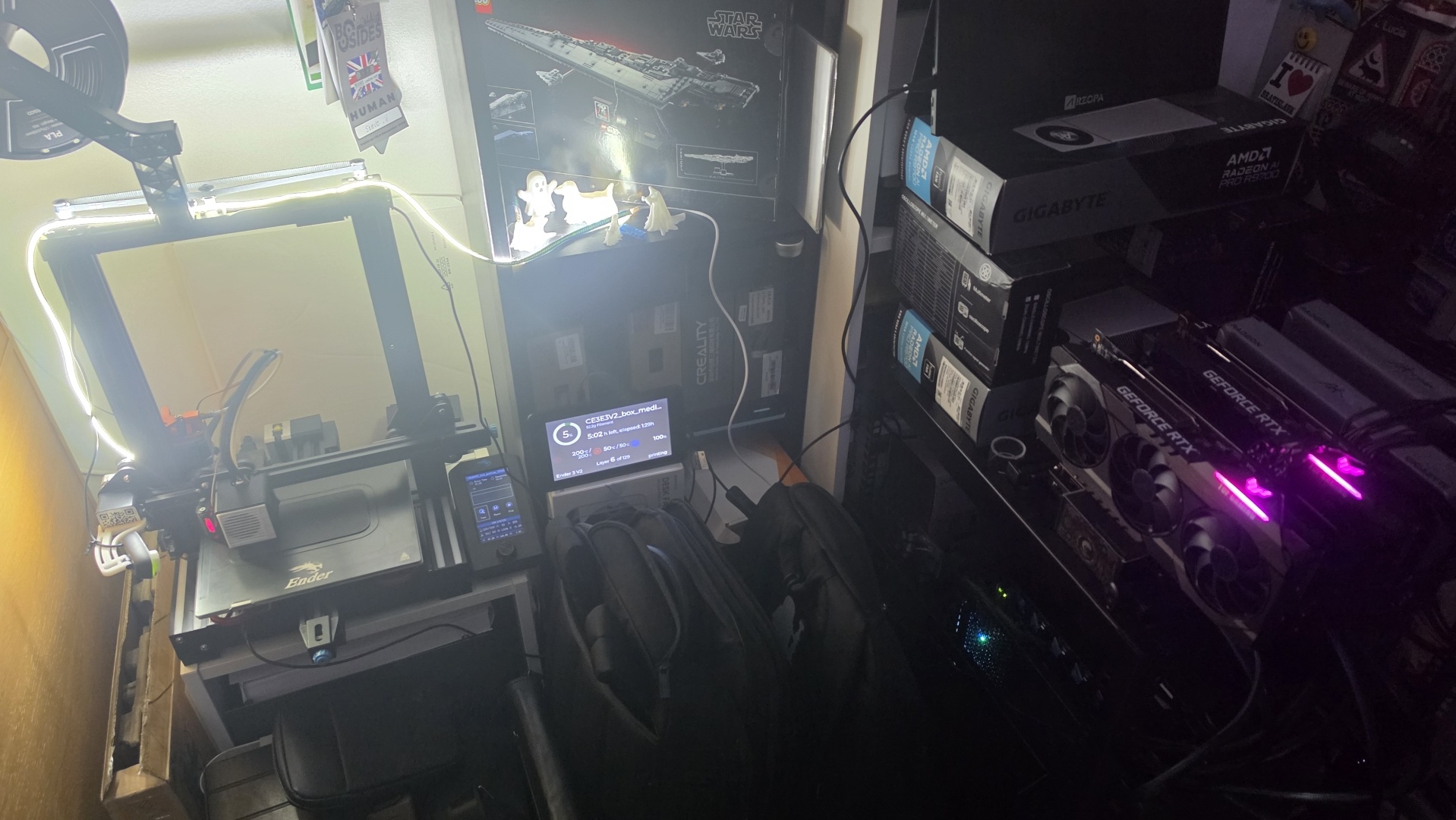
Lights down: the printer at work under its LED strip, OctoDash on layer 6 of 120, next to a shelf of graphics cards. The AI side of the project comes next.
A first taste: bringing a ghost to life
Before wiring any AI into the printer itself, I gave the new AI rig a Halloween test. I took my photo of the first printed ghost and fed it to an image-to-video model running locally on the rig. Out came the clip at the top of this post: the ghost peeling itself off the desk and floating away over the printer.
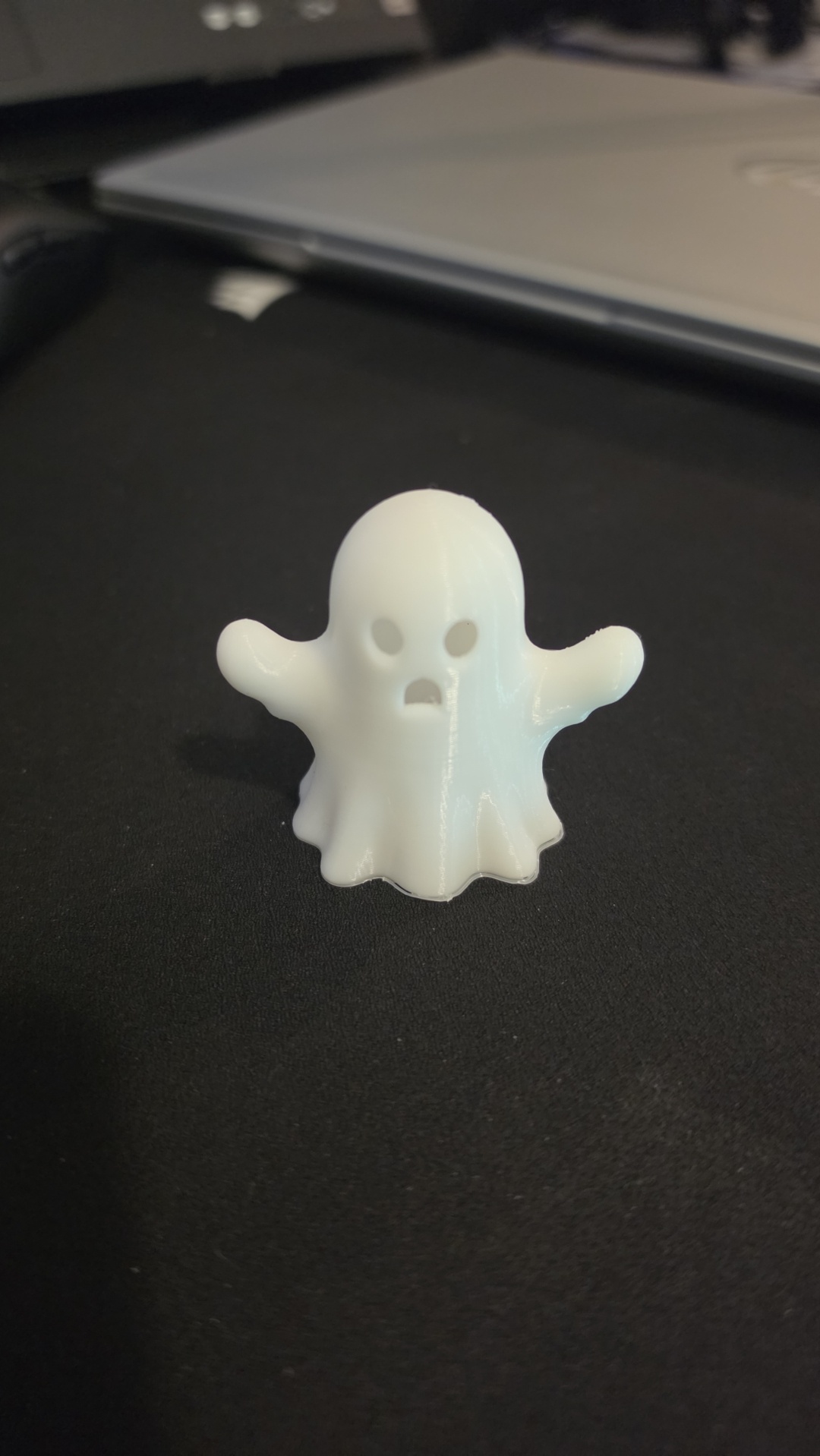
The input: my photo of the first ghost off the resurrected printer, which the model turned into the opening clip.
- AI-assisted modelling: turn a plain-English description or a photo into a printable model, then slice and print it. I’m still researching the tools: hosted generators such as Meshy AI, free and open-source alternatives I could run on the AI rig itself, and a local LLM writing parametric models as code (OpenSCAD or CadQuery) for functional parts. The goal is cool custom models that nobody has uploaded yet.
- AI eyes on every print: a local PrintMCP server connecting my Hermes agent (Qwen, running locally) to OctoPrint, with a dedicated OctoPrint user, a read-only permission group and a revocable application key. Then a local vision model comparing webcam snapshots with reference images from Cura, pausing the print when something has clearly gone wrong.
- The ghost gallery: photos and Octolapse timelapses of the Halloween ghost family.
Sources
- OctoPrint: Download & Setup
- OctoPrint plugin repository
- Creality 2x temperature reporting fix
- Bed Visualizer plugin
- Obico for OctoPrint plugin
- Octolapse wiki: Getting Started
- Octolapse wiki: Automatic Slicer Configuration
- Octo4a (OctoPrint on Android)
- octoprint_deploy (Linux, multi-printer)
- OctoDash on GitHub
- The Pi Hut: Touchscreen Displays for Raspberry Pi
- Eric Myers: Manually Focusable Logitech C270
- Thingiverse: Logitech C270 focus ring and face plate (thing 3036739)
- Printables: Logitech C270 Focus Ring
- Amazon UK: Logitech C270 HD Webcam
- OctoPrint: A Guide to Safe Remote Access
- The Pi Hut: Official 12.5 W micro-USB power supply
- The Pi Hut: Raspberry Pi 7” Touch Display
- Printables: A Trio of Halloween Ghost Dogs
- PrintMCP
- MRiscoC Professional Firmware for Ender 3 V2/S1
- MRiscoC release 20260106
- MRiscoC wiki: How to install the firmware
- MRiscoC wiki: OctoPrint
- MRiscoC wiki: UBL versions
- Marlin: Model Predictive Temperature Control
- Printables: Perfect 1st layers, 3×3 calibration squares
- MRiscoC wiki: Firmware features
- OctoDash wiki: Installation
- OctoDash wiki: Rotate Screen
- OctoPrint community: Pi under-voltage warnings
- Printables: Clean Shroud 2.0 for Ender 3 V2